By the ZillTech team, certified Zoho consultants. Last updated October 2026.
To add a lead source in Zoho CRM, go to Setup > Customization > Modules and Fields > Leads. Open the Lead Source field, click More → Edit Properties, then add or reorder picklist values and optionally set a default. You can also assign Lead Source during lead import or capture it automatically through web forms and Zoho SalesIQ. Zoho’s field customization FAQ lists the same steps.
That takes about two minutes. Doing it well is harder, because a Lead Source list that grows without rules produces reports nobody trusts. Duplicate or inconsistent data is a common reason teams stop trusting their Zoho CRM, and the Lead Source field is where it shows up quickly.
This guide covers the exact steps first. It then covers import, automatic capture, reporting, and the naming rules that keep the data clean. ZillTech is a Zoho partner, and inconsistent data is exactly the kind of problem our Zoho implementation and customization and automation work is designed to fix.
What is the Lead Source field in Zoho CRM and why does it matter?
Lead Source is a standard picklist field in Zoho CRM that records where a lead came from. It matters because it is the simplest way to connect a closed deal back to the channel that produced it. Without it, you can count leads but you can’t say which channels produce revenue.
What exactly is “Lead Source” in Zoho CRM?
Lead Source is a standard pick list field. In the Leads module, Zoho’s standard fields documentation describes it as the field where you select the source of the lead, meaning where the lead was generated. Because it is a pick list, you control which values appear, such as Website, Referral, Webinar, or Paid Search.
The field is not limited to Leads. Zoho’s standard modules and fields documentation shows it in other modules as well:
| Module | What Lead Source records | Data type |
|---|---|---|
| Leads | The source of the lead, that is, where it was generated | Pick list |
| Contacts | The source from which the contact was created | Pick list |
| Deals | The lead source, selected from a drop-down list | Pick list |
Source: Zoho CRM standard modules and fields documentation.
Lead Source is also separate from Campaign Source. Campaign Source is a lookup field that links a lead to a specific campaign. We come back to why that distinction matters in the governance section.
The value also travels with the record. When a lead is converted, Zoho’s lead conversion documentation shows Lead Source carried into the Contact and the Deal. A lead’s origin is therefore still attached to the deal when it closes, provided the mapping is intact.
Two cautions apply before you rely on this:
- Converted leads leave the Leads report. Zoho users have reported that converted leads don’t appear in the original leads report, so source-level conversion reporting can’t come from the Leads module alone.
- Mass Convert can skip mapping. One implementation guide that quotes Zoho’s documentation notes that field mapping is not carried out when records are converted in bulk with Mass Convert. Test this in your own org before you convert in volume.
Why should you care about Lead Source configuration?
You should care because Lead Source is the field that most standard reports use to attribute leads and revenue to a channel. If it is blank, inconsistent, or bloated, every one of those reports gets weaker.
Zoho CRM ships with more than 40 standard reports, and several of them depend directly on this one field:
- Leads By Source shows lead volume by channel.
- Sales By Lead Source shows deal sales by channel.
- Lead Conversion across Sources shows the average number of days it took leads from each source to convert over the past six months.
- Overall Sales Duration across Lead Sources shows the average number of days it took leads from each source to become won deals.
Note that the standard conversion reports measure time to convert, not conversion percentage. For a true conversion rate by source, you will typically need a custom report or Zoho Analytics, which lets you analyze and track leads by source, status, and ownership and includes more than 75 pre-built sales reports and dashboards.
The most useful report in practice is revenue by source. One Zoho consultancy’s tip is to always mark a new lead with a lead source and map the field into at least the Deal module. You can then pull a Closed Won deal report grouped by Lead Source and summed by Amount. That report answers the question leadership actually asks: which channel makes money, not just which one sends form fills.
Lead Source is also a single-touch field, holding one value per record. That is exactly why it needs rules. A field that has to summarize a whole channel mix in one value gets unreliable fast if everyone names things differently. If you want these reports built correctly the first time, our Zoho Analytics and reporting service covers the dashboard side, and the customization work covers the field setup.
How do you add or edit Lead Source values in Zoho CRM?
You add or edit Lead Source values by opening the field’s properties in Setup > Customization > Modules and Fields, then changing the pick list. You need administrator access, and the change takes about two minutes. The part that trips people up is what happens to records that already carry the old values, which is covered below.
Step-by-step: Add new Lead Source options via the UI
Here is the exact path to add a Lead Source value. Zoho’s field customization FAQ gives the same sequence: Setup > Customization > Modules and Fields, then the Lead Source field in the Leads layout, then More > Edit Properties, then the Add icon to enter a new value.
- Log in as an administrator. Zoho’s FAQ steps start with logging in with Administrator privileges. If you don’t see the Setup options, ask your admin or check your profile permissions.
- Go to Setup > Customization > Modules and Fields and select Leads.
- Open the Leads layout and find the Lead Source field.
- Click More > Edit Properties (in some views this appears as the Settings icon next to the field).
- Click the Add icon and type the new value, for example “Webinar” or “Referral Partner”.
- Reorder or remove values as needed, then save.
Zoho notes that each module ships with some industry-standard pick list values, and you can add your own or rename the existing ones to fit your business process.
Two details save time:
- Duplicate option error. If Zoho rejects a new value as a duplicate, check that it isn’t already in either the used or the unused values section. A value can sit in one section or the other, not both. The “missing” value is often just parked in the unused list.
- Deleting is safe for records. When you delete a pick list value, the records that carry that value are not deleted. The records keep the old text, which is why deleting without cleaning up creates orphan values.
Lead Source also appears in the Contacts and Deals modules. After you change the Leads list, open those fields and confirm the options still match. This is our recommendation rather than a Zoho requirement, but mismatched lists are a common reason source reports don’t line up across modules.
How to set a default Lead Source value (and why you should)
You set a default in the same place you add values: Edit Properties on the Lead Source field. Zoho’s FAQ says to edit the pick list field, choose Settings > Edit Properties, and pick the default value you want. When no value is selected on a record, Zoho applies the default.
A default is worth setting because blank sources are the most common gap in lead reports. A sensible default also tells you something when it appears. If many leads show “Unknown” or “Other”, your forms and imports aren’t passing a source.
Pick the default carefully. A default of “Website” will quietly mislabel every manually entered phone or referral lead. A neutral value such as “Not Specified” is easier to filter and fix later. We cover capturing the right source automatically, so defaults rarely apply, in the next sections.
What’s the difference between editing vs replacing a Lead Source value?
Editing a value changes the pick list but does not update existing records. Replacing a value changes the list and reassigns the records that use it. Choosing the wrong one is the usual cause of reports that split one channel into two.
| Edit / rename | Replace Values | |
|---|---|---|
| Where | Edit Properties on the field | Settings icon > Replace Values |
| Updates the pick list | Yes | Yes |
| Updates existing records | No. Edited values are not automatically updated in the records where they are used. | Yes. Replacing is meant for changes that should also be reflected in the associated records. |
| Best for | Adding a new channel | Merging or renaming a channel across history |
Source: Zoho CRM field customization help and FAQ.
For example, say your list has both “Google Ads” and “Paid Search” and you want one name. Renaming only the label leaves older leads on the old text. Use Replace Values to move the old records to the new value so your Leads By Source report shows a single channel.
Zoho states that replacing pick list values is a different operation from adding or renaming them. Run a Leads By Source report before and after, so you can confirm the counts moved as expected.
One more trap relates to values that never entered through the UI. When records are created through the API or web forms, users can pass custom pick list values that were never added to the layout. To prevent this going forward, update the web form or API call settings to use the correct value. If you see unexpected values in your Lead Source report, check your form and integration settings first.
If your list has already grown out of control and you’d rather have a specialist clean it up, our Zoho implementation team handles picklist audits and bulk record clean-up as part of CRM setup.
How can you assign Lead Source when importing leads into Zoho CRM?
You assign Lead Source during import in one of two ways. Either choose a single value for every record in the file, or map a spreadsheet column to the Lead Source field so each row carries its own. Both options appear in the Leads import wizard, and the right one depends on whether your list shares one origin or mixes several.
Option 1: Assign one Lead Source to all imported leads
Use this option when every row in the file came from the same place, such as a trade show list or a single webinar’s registrants. In the import wizard, you pick one value from your Lead Source picklist, and Zoho applies it to every imported record.
Zoho’s import guide says that if you don’t map a Lead Source column, you choose one Zoho CRM lead source value from a drop-down list. A Zoho CRM certified consultant adds that Assign Lead Source is only available in the Leads module. If you import into Contacts instead, use the column method below.
The steps:
- Open the Leads module and start an import.
- Upload your file and choose how to handle new and existing records.
- Map your file’s columns to Zoho CRM fields.
- At Assign Lead Source, choose the option that pulls from your picklist and select the value.
- Complete the import.
Because the value comes from your picklist, you can only choose a source that already exists. Add the value first (see the previous section) so you don’t have to stop mid-import.
Option 2: Map a spreadsheet column to Lead Source
Use this option when one file holds leads from several origins. Add a column such as “Source” to your spreadsheet, fill it in for each row, and map it to the Lead Source field during the import.
Zoho’s guide describes this as the “from mapping” choice: your file has a column naming the lead source, you map it to the CRM field, and Zoho uses the file’s values as the source. The consultant guide gives the same method, creating a Lead Source column and filling in values for every record before you select the file.
The value you type must match your picklist exactly. Zoho’s import documentation states that all values shown in the drop-down fields must exist in the corresponding Zoho CRM fields. “Trade Show” and “Tradeshow” are different values to the system.
Here is how the two options compare:
| Assign one value | Map a column | |
|---|---|---|
| Best for | Single-origin lists (one event, one purchased list) | Mixed-origin files |
| Prep work | None | Add and fill a Source column |
| Risk | Mislabeling a mixed file as one source | Typos and values not in your picklist |
| Module | Leads only | Leads and other modules |
Source: Zoho CRM import guide and a Zoho CRM certified consultant's community post.
Use Apply Auto Mapping to speed up field matching. Zoho’s import steps say that clicking the link lets CRM map matching columns automatically. Always check that your source column mapped to Lead Source rather than a similarly named field.
Common import pitfalls and how to avoid them
Most Lead Source import problems come from values that don’t match the picklist, or from mapping the field when you shouldn’t have. These are the ones to check before you click import:
- Mismatched values. Typos, extra spaces, and variant spellings break the match, and Zoho states the values must exist in the CRM field. Clean the column in your spreadsheet first and compare it against your picklist. Our recommendation is to sort the column and scan the unique values before you upload.
- Overwriting sources on update imports. When you import to update existing records, leaving a field unmapped protects it. The consultant guide says fields you don’t map “remain untouched” in Zoho. Map Lead Source only when you intend to change it. Zoho also lets you skip updating empty values from the file.
- Ad-hoc values from other sources. The same problem happens outside imports. Zoho’s troubleshooting guide says records created through the API or web forms can carry custom picklist values that were never added to the layout. If you see odd values in your reports, check your form and integration settings, not just your import file.
- Assuming “Assign Lead Source” exists everywhere. It does not; it appears in the Leads import only.
For large moves, such as bringing a legacy CRM into Zoho with sources intact, a mapping plan up front saves a cleanup later. Our Zoho migration service covers that data mapping.
How do you automatically capture Lead Source from web forms and chat?
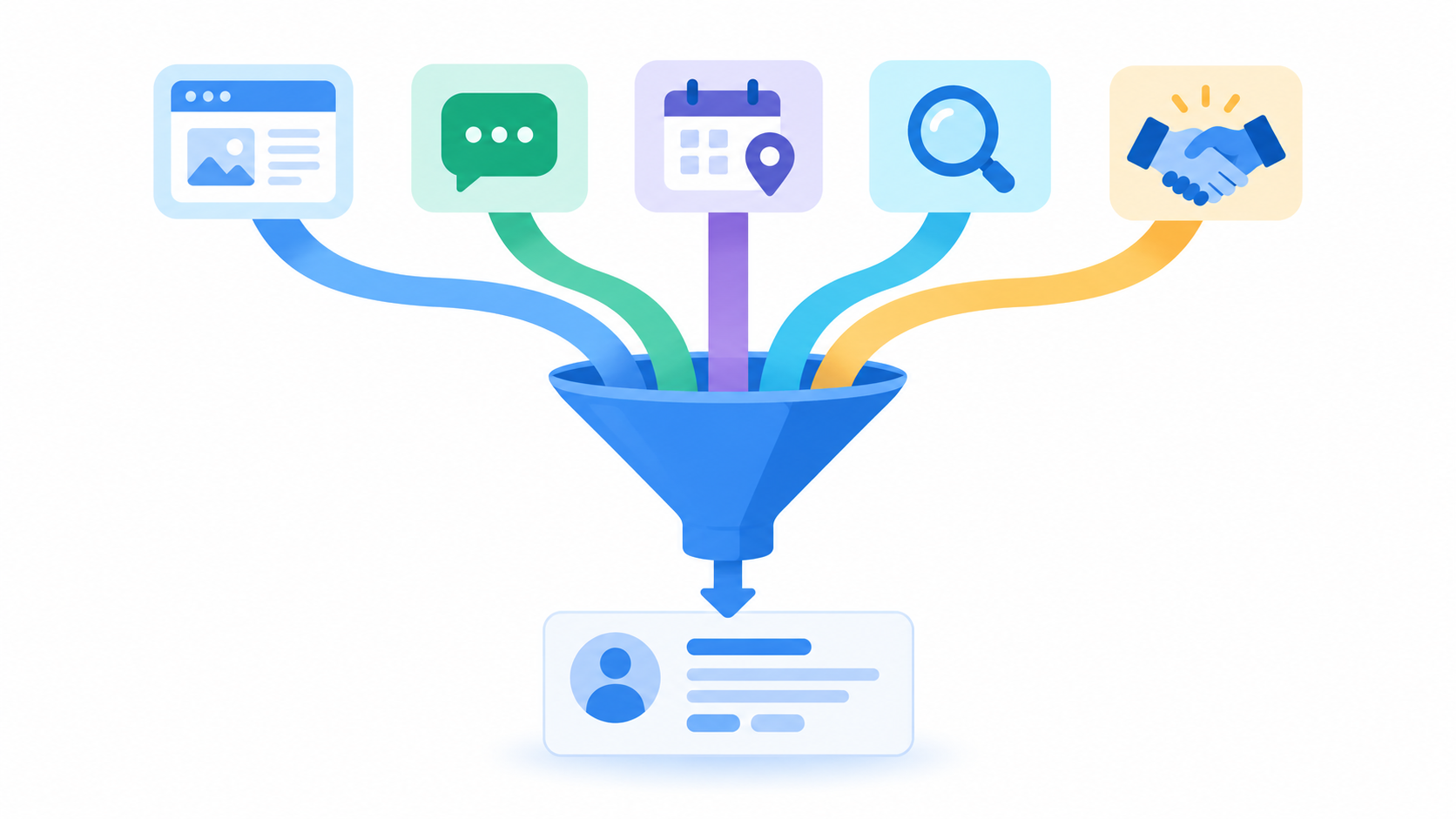
You capture Lead Source automatically by having each lead-generating channel pass its own value at the moment of creation. For web forms, that means a hidden Lead Source field with a default value per form. For chat, it means the Zoho SalesIQ integration, with one check on your side to confirm the source value arrives. Automation matters because manual entry is where blank and inconsistent sources begin.
Using hidden Lead Source fields in Zoho web forms
A hidden field lets every form submission tag itself with the right source, and the visitor never sees it. Zoho’s web form FAQ says you can track lead sources by adding a hidden field to the form and giving it a unique value.
The steps, based on Zoho’s documentation:
- Open the web form editor in Zoho CRM.
- Drag the Lead Source field into the editor.
- Select the “Mark as hidden field” checkbox.
- Enter a default value for each form.
Zoho gives an example of how this plays out: for a form on a second site, you could set the default value to “blog” or another suitable option. Every lead from that form then arrives with that source.
One warning from the same FAQ: the generated form code includes system hidden fields, and removing them stops the form from working. If you customize the form’s HTML, leave Zoho’s own hidden fields alone.
If you use Zoho Forms rather than a native CRM web form, the idea is the same. A Zoho partner’s walkthrough describes adding a single-line Lead Source field, hiding it, setting the initial value, and mapping it to the CRM Lead Source field. Whichever tool you use, the value you set must match a Lead Source picklist option, or you’ll create the ad-hoc values we covered earlier.
Tracking multiple sites and campaigns with form defaults
For multiple sites, regions, or landing pages, give each form its own default value and keep the specifics in a separate field. Zoho’s guidance supports per-form defaults, as shown above. The campaign detail is where UTM parameters help.
A hidden field named to match a URL parameter, such as utm_source, reads its value from the page URL when it loads. In Zoho Forms, you map that field to the matching CRM field, and the source lands on the lead record automatically. The same article suggests reserving hidden fields for campaign metadata such as source, medium, campaign, and click ID.
A Zoho consultancy’s Zoho Forms example shows the flow: a visitor lands on a page, a prefill parameter sets the hidden lead source field to that page’s value, and the submitted form creates a CRM lead with that Lead Source.
Here is how we would lay this out. This is our recommendation, not a Zoho requirement:
| Where the form lives | Lead Source (channel) | Detail field (specifics) |
|---|---|---|
| Blog posts | Website | Blog category or post URL |
| Paid landing page | Paid Search | Campaign name from UTM |
| Partner site | Referral | Partner name |
| Event signup page | Event | Event name |
ZillTech recommendation, not a Zoho requirement.
This keeps Lead Source to a handful of channel-level values and puts the campaign-level detail elsewhere. We expand on this split in the governance section. If you manage several sites or regions, our Zoho customization and automation team can standardize the form defaults and field mapping for you.
How Zoho SalesIQ captures chat leads in Zoho CRM
Zoho SalesIQ’s CRM integration pushes website visitors into Zoho CRM as leads or contacts, along with their visit data. Check one thing yourself before you rely on it for source reporting: whether your Lead Source field is being filled with the value you expect.
What Zoho documents, in its SalesIQ integration guide:
- The integration, also called Visitor Tracking, lets you engage visitors through chat and push their information into CRM.
- When a visitor views a page or starts a chat, SalesIQ captures their details and syncs them to Zoho CRM as a new lead or contact.
- You choose whether visitors are pushed as Leads or Contacts.
- Enabling it adds Visit Summary fields to the Leads and Contacts modules, plus a Visits – Zoho SalesIQ related list.
- The integration is available on all paid editions of Zoho CRM.
Campaign data can also flow in. A Zoho community post explains that SalesIQ tracks campaign UTM details and pushes them into CRM fields such as Campaign Name, Campaign Source, and Campaign Medium that you’ve created in the Leads module. To push other data, create a custom CRM field with the same name as the SalesIQ field.
What value lands in Lead Source is the part Zoho’s documentation doesn’t spell out, and community reports are mixed. One Zoho user reported that SalesIQ-generated leads showed Lead Source as “Chat” even when the visitor really came from Facebook, Instagram, or WhatsApp. Another user reported that chat-created leads arrived as “UnAccounted” instead of “Chat website”.
So test it. Create a lead through a SalesIQ chat in your org and open the record. If Lead Source is blank or unexpected, add a workflow rule that sets it for leads with SalesIQ visit data, or configure a default. Then make sure the value you choose exists in your picklist so reports group chat leads together. Be aware that a single “Chat” value can hide the real channel behind the conversation, so consider a detail field for it.
If you need chat, forms, and other apps feeding Zoho CRM consistently, that is typically an integration job as much as a field setup job.
How do you use Lead Source for reporting and attribution in Zoho CRM?
You use Lead Source for reporting by grouping leads, deals, and revenue by its values, either in Zoho CRM’s standard reports or in Zoho Analytics. Lead Source answers “which channel?” at the record level. For “which campaign, and how much credit?”, you need Campaign Source or a separate attribution tool, and one Zoho feature in that area is being retired (covered below).
Standard reports and dashboards that use Lead Source
Start with the reports that are already built. Zoho CRM’s standard reports include several that group by this field:
| Report | What it shows |
|---|---|
| Leads By Source | Leads from various sources |
| Sales By Lead Source | Sales from various lead sources |
| Lead Conversion across Sources | Average days for leads from each source to convert, over the past six months |
| Overall Sales Duration across Lead Sources | Average days for leads from each source to become won deals |
Source: Zoho CRM "Working with Reports" help page.
For conversion rates and revenue views, Zoho Analytics goes further. Zoho’s sales dashboard examples include a Sales Leads dashboard with lead conversion rate, top lead source, and won amount by lead source. One Zoho partner’s community post describes an attribution funnel that runs Lead Source to Lead Status to Deal Stage to Amount (Closed Won). The same post makes the point this whole guide builds on: Lead Source should be mandatory in the CRM before any marketing analysis, because empty values contaminate every dashboard.
Three setup details decide whether these reports can be trusted:
- Map Lead Source into Deals. A Zoho consultancy advises marking every new lead with a source and mapping the field into at least the Deal module, so you can report Closed Won deals grouped by Lead Source and summed by Amount.
- Don’t rely on the Leads module alone. Zoho users have reported that converted leads don’t appear in the original leads report. Revenue by source belongs in Deal-based reports.
- Define your conversion rate. A guide to Zoho CRM dashboards in Metabase advises you to state the denominator explicitly for win rate, such as won divided by closed versus won divided by created. Pick one definition and keep it.
If you’d rather have these dashboards built and maintained for you, that’s what our Zoho Analytics and reporting service does.
Using Lead Source in Zoho Social and other integrations
Zoho Social reads Lead Source to show which social channels produce leads and revenue. Once you integrate Zoho Social with Zoho CRM, built-in CRM Reports track the leads and contacts created, the potentials, and the revenue generated from people who interacted with you on social media. (“Potentials” is the older name for Deals.)
To see revenue by network, open Reports, select CRM under Standard Reports, click Revenue ($), and use the Lead Source filter in the top-right corner. Zoho’s help page notes that data for leads from Facebook and Twitter is available in these reports. Check which networks your own account supports, since social platforms change often.
Beyond single-value Lead Source: Marketing Attribution in Zoho CRM
Lead Source holds one value per record. It can’t tell you that a lead first found you through a webinar, then clicked an email, then came back through search. Multi-touch attribution exists for that. But check Zoho’s current status before you plan around it.
Zoho’s help pages describe the Marketing Attribution feature this way:
- It offers six models: first touch, last touch, U shape, W shape, linear, and time decay.
- The touchpoints are the campaigns you run, and the model applies to all campaigns in a sales cycle. You can’t use different models for different campaigns.
- Credit goes to the type of campaign, not to the Lead Source. So it doesn’t replace Lead Source reporting.
- The default sales stages are lead creation, lead conversion, deal creation, and deal won.
- Reports include top revenue-generating campaign, leads by campaign type, and conversions by campaign type.
The important caution: Zoho’s FAQ carries a banner saying the Marketing Attribution feature has been discontinued for new users and will be retired for existing users. Confirm the current status and dates in Zoho’s help center before you build a process on it.
If you need multi-touch views, there are two other routes. Link leads to campaigns with the Campaign Source field and use the campaign reports, such as Campaign Leads, which lists leads generated through a campaign. Or look at Zoho Marketing Automation, where lead attribution reports consider two dimensions: lead source and URL. For an example of sales and campaign data living in one system, see ZillTech’s Zoho One implementation for a digital marketing agency, which unifies sales, campaigns, remote team management, and billing.
Whichever route you take, clean Lead Source data makes it work, which is why the next section covers naming and governance.
What are the best practices for Lead Source naming and governance?
The best practice is to keep Lead Source short, stable, and channel-level, fill it automatically wherever you can, and put campaign detail in separate fields. Zoho will accept any value you give it, so the discipline has to come from your rules. Without them, the picklist grows one entry per campaign and your source reports lose their meaning.
Keep Lead Source to a short list of stable, channel-level values
Treat Lead Source as the channel, such as Website, Paid Search, Referral, Webinar, Event, or Social. Treat the specific initiative as something else. A good working target is roughly five to seven values. That is our rule of thumb from CRM setup work, not a Zoho limit, and a few more is fine if your business really has more channels.
The reason is reporting. Leads By Source and Sales By Lead Source work when each bar is a channel you can act on. If “Q3 Manufacturing Webinar” and “Q4 Retail Webinar” are separate values, you can no longer answer “how do webinars perform?” without merging them by hand.
Lists also drift without anyone adding values on purpose. Zoho’s troubleshooting guide notes that records created through the API or web forms can carry custom picklist values that were never added to the layout. Salesforce’s community guidance describes the same pattern for its Lead Source field: the field’s values can be bypassed, which can produce extra values that confuse reporting. Locking down your forms and integrations matters as much as editing the list.
When to use Campaign or a custom “Lead Source Detail” field
Use Campaign Source for a specific program and a Lead Source Detail field for sub-channel or partner information. Each field answers a different question:
| Field | Answers | Example values | Type |
|---|---|---|---|
| Lead Source | Which channel? | Paid Search, Webinar, Referral | Standard pick list |
| Campaign Source | Which specific initiative? | "Q3 Manufacturing Webinar" | Lookup field linking to a campaign |
| Lead Source Detail (custom) | Which sub-channel or partner? | "Google – Brand", "Partner – ABC Agency" | Custom text or pick list |
Framework: ZillTech recommendation. Campaign Source is a lookup field in Zoho CRM's standard fields.
Campaigns carry more detail by design. As one Salesforce guide puts it, campaigns are more granular than the simple Lead Source field. The same logic applies in Zoho. “Lead Source Detail” is a field name we suggest, not a built-in one, so create it in Modules and Fields and map it for lead conversion so the value follows the lead.
You can also pass UTM values into these detail fields from your forms, as covered in the capture section above.
Four operational rules for clean Lead Source data
- Hold the value list to a short set of channels. Review any proposed new value against the question “is this a channel or a campaign?”
- Populate it automatically at creation. Use hidden form fields, import defaults, and integrations. One agency guide on lead sources advises using automated tracking links to minimize human error and making lead source a required field with standardized options. A Zoho community partner says the same: Lead Source should be mandatory before any marketing analysis.
- Put campaign specifics in a second field. Don’t encode them in the picklist. Keep the original source stable. A Marketo community practitioner suggests keeping Lead Source as the value that never changes, and filling it only when it is empty so you don’t overwrite the original. In Zoho, a workflow condition on an empty Lead Source can do the same job.
- Run self-reported attribution alongside tracking. Add an optional “How did you hear about us?” field to forms. One attribution glossary recommends keeping measured attribution and the self-reported answer side by side on every lead. It catches channels that leave no click, such as podcasts, communities, a colleague’s recommendation, or an AI answer. Store the answer in a CRM field and keep it separate from the measured source.
Data hygiene and periodic cleanup
Clean-up is a routine, not a project. Run a short audit on a fixed schedule, and fix problems before records convert.
- Audit the picklist quarterly. Look at your Lead Source report and ask which values hold almost no leads and which contain blanks. This cadence is our recommendation.
- Use Replace Values, not rename. As covered earlier, replacing pick list values also updates the records that carry them. That makes it the right tool for merging near-duplicates.
- Remove duplicates and add required-field rules. A Zoho partner’s lead management guide advises using Zoho’s tools to remove duplicates and setting validation rules so required fields are filled before a lead is saved.
- Fix sources before conversion. One Zoho community member reported that manually updating the source on converted contacts did not change the Analytics sales funnel report. Test how your own reports behave before you plan a large retroactive cleanup.
- Review source performance monthly. The Martal lead source guide recommends tracking volume, conversion quality, and cost per lead by source, and holding a regular review of them. A source that sends many leads but few deals is noise, and a small one that converts well deserves attention.
If your list is already messy and you want a second set of eyes before restructuring, that’s the kind of audit our Zoho consulting team does.
What should you do next? A quick Lead Source setup checklist
Work through these in order. The first few take under an hour:
- Audit your current Lead Source values. Find duplicates, near-duplicates, and values with almost no records. Merge them with Replace Values and aim for a short list of channels.
- Set a default on the field, then set hidden Lead Source defaults on every web form and an “Assign Lead Source” value in every import template.
- Check chat. If you use SalesIQ, create a test lead and confirm what lands in Lead Source. Add a rule if it doesn’t.
- Map Lead Source into Deals in your conversion mapping, so revenue reports can group by source.
- Build two reports: Leads By Source and Sales By Lead Source, both from Zoho’s standard set.
- Schedule reviews. Review source performance monthly and audit the picklist quarterly.
If you’d like a specialist to audit your Lead Source setup and build the reports, book a free Zoho consultation with ZillTech or contact our team. Our certified team can review your current setup, fix what’s slowing your team down, and give you a clear plan.