I still remember the week a client’s newly hired marketing ops person came to me convinced something was broken. Every Monday, she was manually exporting CSVs from Zoho CRM and re-uploading them into Mailchimp – a ritual that ate close to two weeks of her onboarding before anyone questioned why it was still happening in 2026. It wasn’t broken. It was just never integrated. And that’s more common than most teams admit.
If you’re reading this, you’ve probably hit the same wall: leads sitting in Zoho CRM that never quite make it into your email campaigns in time, or email engagement data that lives in Mailchimp and never makes it back to your sales team. Based on my experience working with Zoho CRM set up examples across mid-size and enterprise teams, this gap is almost always a sync problem, not a strategy problem.
The cost of leaving it unsolved is bigger than it looks on paper. Litmus’s 2025 benchmarking data pegs email marketing ROI at roughly $36 to $50 for every dollar spent, which means every stale lead sitting in an unsynced CRM is quietly leaking revenue. Separately, a large share of businesses, over 44% by some estimates, report losing more than 10% of revenue to poor CRM data quality alone. And the manual workaround most teams fall back on tends to burn 5 to 10 hours a week per marketer.
In this guide, I’m going to walk you through exactly what I’d set up if I were doing this for a client today: four integration methods (with a straight answer on which one to actually use), a field-mapping template you can copy, five automation workflows that consistently save teams 10+ hours a week, real cost comparisons for 2026 pricing, and the troubleshooting fixes I’ve had to look up more times than I’d like to admit. If you want to check current plan pricing while you read, here’s our full Zoho CRM Pricing Guide 2026 for the latest tiers and per-user costs.
One honest note before we dive in: integration isn’t always the right call. Later in this guide, I’ll show you when switching to Zoho Campaigns instead of syncing to Mailchimp actually makes more financial and operational sense, because recommending a sync just because it’s possible isn’t good advice, it’s just more software.
Why Integrate Zoho CRM with Mailchimp? (Expert Insights)
The Business Case (Data-Driven)
Let me put some numbers behind what I already touched on in the intro, because “you’re losing time” only lands once you see what that time is actually worth.
Litmus’s 2025 email marketing benchmark puts average ROI at $36 to $50 per dollar spent – one of the highest returns of any marketing channel, which is exactly why CRM-to-email sync gaps hurt more than they seem to on the surface. On top of that, roughly 44% of businesses report losing 10% or more of their revenue specifically because of poor CRM data quality. And the manual fix most teams lean on typically costs 5 to 10 hours a week per marketer, based on what I’ve seen across the accounts I’ve worked on.
None of that is abstract. It’s the difference between a lead getting a follow-up email within minutes of filling out a form, versus sitting untouched until next Monday’s export.
What You Gain from Integration
- Real-time lead sync: no more waiting on a weekly export to get new contacts into your email flow
- Email engagement visibility inside the CRM: opens, clicks, and bounces show up right next to the deal record
- Automated segmentation: audiences build themselves based on deal stage, industry, or MRR. See our marketing automation workflows for Zoho CRM guide for the full workflow breakdown.
- Two-way GDPR compliance: opt-outs sync in both directions
That last point matters more than people give it credit for. I’ve seen compliance gaps happen not because a team ignored GDPR, but because their sync was one-directional and nobody realized it.
When NOT to Integrate (Expert Advice)
Here’s where I’ll push back on the assumption that “integrate everything” is always the right move. The team at CodeStringers makes a fair point worth sitting with: before you build out a sync, it’s worth asking whether your use case actually needs one or whether Zoho Campaigns, which is native to the CRM, already covers what you’re trying to do.
In my experience, this usually comes down to complexity. If your sync just needs to move contacts and basic engagement data one way, Zoho Campaigns might remove the need for an integration entirely. But if you’re dealing with real matching logic, high contact volume, or two-way engagement data flowing back into deal records, that’s when a proper Zoho–Mailchimp integration earns its keep.
4 Integration Methods Compared (Expert Breakdown)
Method Comparison Table
Method | Setup Time | Cost | Best For | Maintenance |
Native Extension (xApplets/DSVCorp) | 30 mins | $0–$20/mo | Standard sync, 1–10K contacts | Low |
Zoho Flow | 1–2 hours | $10–$50/mo | Event-driven workflows | Low |
API + Webhooks (Custom) | 4–8 hours | Dev time | Complex logic, 50K+ contacts | High |
Middleware (Zapier/Make/SyncApps) | 1–3 hours | $20–$100/mo | Multi-app automation | Medium |
Method 1 - Native Marketplace Extension (Recommended for Most)
This is usually where I point clients first. It’s the official Zoho extension, you can find the listing directly on the Zoho Marketplace, built by partners like xApplets and DSVCorp, and designed to get you syncing without touching a single line of code. If you haven’t set up the CRM itself yet, our Zoho CRM setup guide walks through the base configuration first.
- Go to Zoho CRM → Marketplace → install “Mailchimp for Zoho CRM”
- Connect your Mailchimp account via OAuth 2.0
- Map fields – Email, First Name, Last Name, and Company auto-map
- Choose your sync direction (one-way or bidirectional)
- Set your sync frequency, anywhere from 1 to 10 minutes
Pros: Fast, no-code, handles opt-outs automatically.
Cons: Limited custom logic, 500 records/batch cap.
Pro tip: test with a single record before you push a bulk sync, it’s saved me from cleaning up messy duplicate pushes more than once.
Method 2 - Zoho Flow (No-Code Automation)
If your goal is triggering specific Mailchimp actions off specific Zoho events, Zoho Flow is the native workflow builder built for exactly that.
Example workflow:
- Trigger: New Lead created in Zoho CRM
- Action: Add or update the person as a Mailchimp audience member
- Action: Apply a tag based on Lead Status (MQL, SQL, etc.)
Pros: Event-driven, visual builder, no separate middleware subscription.
Cons: Requires a Zoho Flow subscription; stays within the Zoho ecosystem.
Method 3 - API + Webhooks (For Developers)
This is the route I recommend once a client’s needs genuinely outgrow the no-code options – often once Zoho CRM paths integration logic or high-volume matching becomes the real requirement.
- Generate a Mailchimp API key
- Create the Zoho Connection (OAuth 2.0)
- Write Deluge functions to call the Mailchimp API
- Configure Mailchimp webhooks to pull engagement data back into Zoho
Pros: Full control, unlimited scalability, custom logic.
Cons: Requires a developer; ongoing maintenance overhead.
Warning: handle opt-outs carefully. A custom sync that doesn’t respect unsubscribes properly is a fast way to rack up spam complaints.
Method 4 - Middleware (Zapier/Make/SyncApps)
For teams whose stack goes beyond Zoho and Mailchimp, middleware is often the pragmatic middle ground.
Example (Zapier):
- Trigger: New Contact created in Zoho CRM
- Action: Add subscriber to Mailchimp
- Action: Send a Slack notification to the sales team
Pros: No-code, 5,000+ app integrations.
Cons: Per-task pricing adds up; deleted records don’t sync, a known Zapier limitation worth knowing before you commit to this route.
Step-by-Step Setup (Native Extension - Recommended)
Since the native extension is what I recommend for most teams, let’s walk through one of the Zoho CRM set up examples I actually run with clients.
Pre-Setup Checklist
- Admin access to both Zoho CRM and Mailchimp
- Clean data – deduplicate contacts and validate emails before syncing
- Standardized field names across both systems
- Custom fields already created in Mailchimp, if needed
Installation (5 Steps)
- Go to Zoho CRM → Marketplace → install the Mailchimp extension
- Authenticate Mailchimp through the OAuth 2.0 popup
- Map your fields – Email, First Name, Last Name, Company, Phone auto-map by default
- Configure your sync direction (one-way or bidirectional)
- Set your sync frequency and batch size (up to 500 records/batch)
Post-Setup Validation
- Test with one record first before syncing your full list
- Verify opt-out sync in both directions
I treat the opt-out check as non-negotiable – a sync that moves contacts fine but fails silently on unsubscribes is a GDPR problem waiting to surface.
Standard Field Mapping Table
| Zoho Field | Mailchimp Merge Tag | Notes |
|---|---|---|
| Mandatory, unique key | ||
| First Name | FNAME | Required for personalization |
| Last Name | LNAME | Required |
| Company | COMPANY | For B2B segmentation |
| Phone | PHONE | Optional |
| Lead Status | STAGE | Map to tags (MQL, SQL, etc.) |
| Email Opt Out | Subscription Status | Critical for GDPR |
| Industry | INDUSTRY | Custom merge tag |
| MRR | MRR | Custom merge tag (for SaaS) |
Advanced Mapping Tips
- Create custom merge tags in Mailchimp before you map them
- Use a “SOURCE” tag to distinguish Leads from Contacts
- Map picklist values explicitly (e.g. “Hot Lead” → “hot-lead”)
- Handle duplicates by treating email as your unique key, with deduplication enabled in Zoho
Common Mapping Mistakes to Avoid
- Mapping a non-email field as EMAIL – causes duplicate records
- Forgetting to map “Email Opt Out” – a compliance risk
- Using inconsistent field formats (“Phone” vs “PHONE”)
- Skipping the single-record test before bulk syncing
Zoho Campaigns vs Mailchimp: Which Should You Integrate? (2026 Data)
Side-by-Side Comparison Table
| Feature | Zoho Campaigns | Mailchimp |
|---|---|---|
| Price @ 1K contacts | $4/month | $13/month |
| Price @ 10K contacts | $40/month | $100/month |
| Free tier contacts | 2,000 | 500 |
| Native CRM sync | Bidirectional, real-time | Third-party only |
| Integrations | 60 | 329 |
| Setup time | 15 mins (native) | 2–4 hours (middleware) |
| Automation workflows | 20+ | 50+ |
| Deliverability | 98%+ | — |
At 10,000 contacts, you’re looking at $40/month with Zoho Campaigns versus $100/month with Mailchimp – a 60% difference before adding a sync tool on top of the Mailchimp route.
When to Choose Zoho Campaigns
- Already running Zoho CRM and want native sync without middleware
- Budget-conscious – the pricing gap widens as your list grows
- Want predictable pricing without sudden increases
- Need GDPR compliance handled natively
When to Choose Mailchimp
- Need 300+ integrations (Shopify, WordPress, etc.)
- Team prefers Mailchimp’s more approachable interface
- Already have established audiences/automations in Mailchimp
- Need deeper automation – customer journeys, predictive analytics
Decision Tree
Using Zoho CRM? → Yes → Budget under $50/month? → Yes → Zoho Campaigns. → No → Need 100+ integrations? → Yes → Mailchimp / No → Zoho Campaigns. → Not using Zoho CRM → Mailchimp (better standalone).
5 Automation Workflows That Save 10+ Hours/Week
Workflow 1 — New Lead → Welcome Email
Trigger: New Lead in Zoho CRM. Action: Add to Mailchimp “Welcome Series” audience and send a personalized welcome email (FNAME, COMPANY). Time saved: ~2 hours/week.
Workflow 2 — Deal Stage Change → Nurture Sequence
Trigger: Deal moves to “Qualified.” Action: Add to “Sales Nurture” audience; trigger a 3-email sequence (case studies, demo invite). Time saved: ~3 hours/week.
Workflow 3 — Email Click → Sales Task
Trigger: Lead clicks pricing page link. Action: Create a “Follow Up” task in Zoho CRM and notify the sales rep. Time saved: ~1 hour/week.
Workflow 4 — Unsubscribe → CRM Opt-Out
Trigger: Unsubscribe in Mailchimp. Action: Update “Email Opt Out” in Zoho CRM and remove from future audiences. GDPR/CCPA compliant — if you build only one workflow from this list, make it this one.
Workflow 5 — Inactive Contact → Re-engagement Campaign
Trigger: 30 days with no email opens. Action: Add to “Re-engagement” audience; send a “we miss you” email. Time saved: ~2 hours/week. This pattern is adapted from an n8n + Zoho + Mailchimp automation build if you’d rather run it outside native Zoho Flow.
Formula: Hours saved/week × Team size = Hours saved/month.
Troubleshooting: 10 Common Sync Errors (Fixed)
| Error | Cause | Fix |
|---|---|---|
| Org is already integrated | CRM linked to another Campaigns account | Disconnect existing integration first |
| Contacts not syncing | Invalid email / API limit | Validate RFC 5322 emails, reduce sync frequency |
| Opt-out not syncing | Field mapping missing | Map Email Opt Out → Subscription Status bidirectionally |
| Duplicate records | Same email in Leads + Contacts | Use Zoho deduplication tools pre-sync |
| Deleted records not removed | Zapier limitation | Use native extension or API instead |
| Custom fields not mapping | Merge tag not created | Create custom merge tag in Mailchimp first |
| Sync stops after 500 records | Batch limit reached | Increase frequency or upgrade plan |
| Engagement data not syncing | Webhooks not configured | Set up Mailchimp webhooks |
| API rate limit exceeded | Too many requests/minute | Add delay, use batch processing |
| Authentication fails | OAuth token expired | Re-authenticate via Zoho Marketplace |
Check the xApplets audit log first – it’ll usually tell you exactly which of these ten you’re dealing with, rather than making you guess.
Real ROI: Case Study Results

BoostedCRM Case Study (2026)
Challenge: manual CSV exports, stale leads, over 10% data loss. Solution: native Zoho–Mailchimp integration plus the workflows above. Full details in the BoostedCRM case study. For a similar walkthrough written for an e-commerce use case
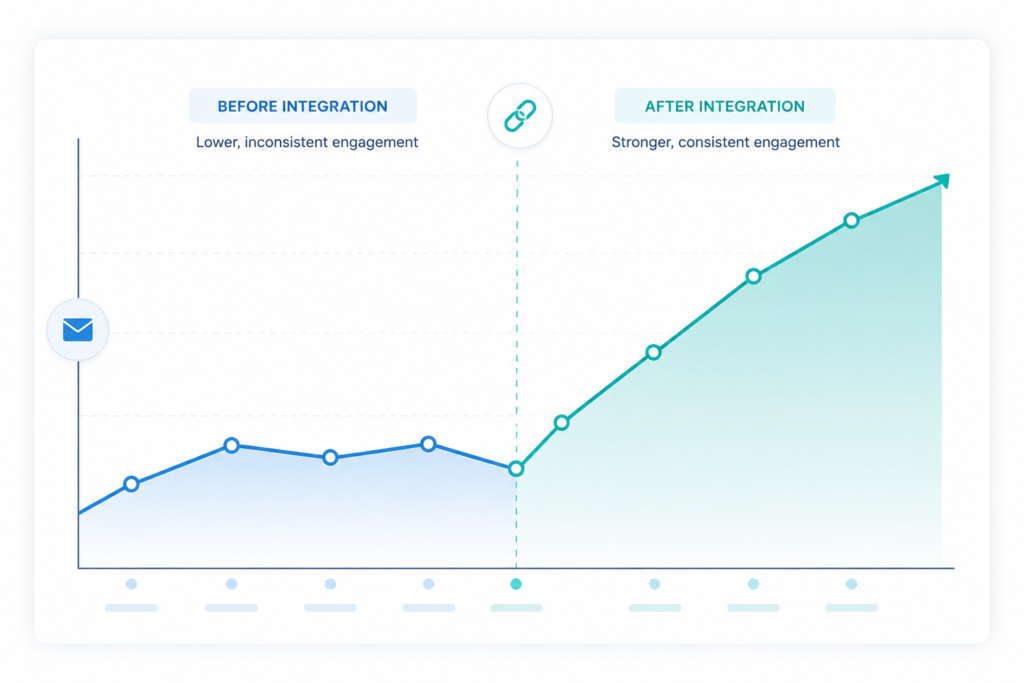
- Email engagement rate doubled in 2 months
- Lead-to-opportunity conversion increased 42%
- 250,000+ contacts migrated with 100% data integrity
- 15 hours/week saved — manual sync eliminated
ROI Calculator
Hours saved/week × Team size × Average hourly rate = Monthly savings. Example: 10 hours × 3 marketers × $50/hour = $1,500/month saved.
Pricing Reality Check (2026 Total Cost of Ownership)
3-Year TCO Comparison
| Component | 3-Year Total |
|---|---|
| Zoho CRM (10 users, Standard) | $5,040 |
| Mailchimp (10K contacts) | $3,600 |
| Sync Tool (xApplets) | $720 |
| Total (Mailchimp route) | $9,360 |
| Zoho Campaigns (10K contacts) | $1,440 |
| Total (Zoho Campaigns route) | $6,480 |
| Savings with Zoho Campaigns | $2,880 (31%) |
When to Switch to Zoho Campaigns
- Mailchimp bill already north of $100/month at 10K+ contacts
- Already paying for a sync tool on top of Mailchimp
- Need native CRM sync without middleware
- Want pricing that doesn’t jump 50–100% as you scale
FAQs (Expert-Answered)
Can I integrate Zoho CRM with Mailchimp for free?
Yes! the native extension’s free tier and Zoho Flow’s free plan cover basic needs. Paid plans start around $10–$20/month.
Is Zoho Campaigns better than Mailchimp for Zoho CRM users?
For teams already on Zoho CRM, Zoho Campaigns offers native bidirectional sync and roughly 60% lower pricing at scale.
What happens if I delete a contact in Zoho CRM?
The native extension removes it from Mailchimp too; Zapier does not trigger on delete – see this Zapier community thread for the details.
How do I migrate from Mailchimp to Zoho Campaigns?
Export audiences, import to Zoho, recreate automations, test, then switch DNS – see BoostedCRM’s migration walkthrough for a step-by-step version