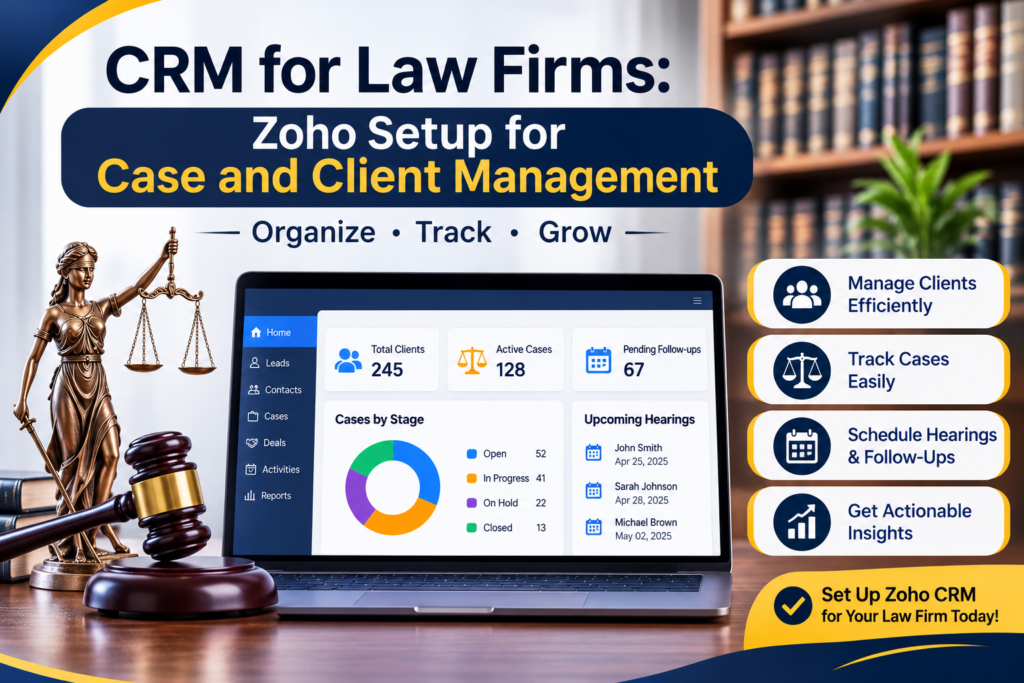
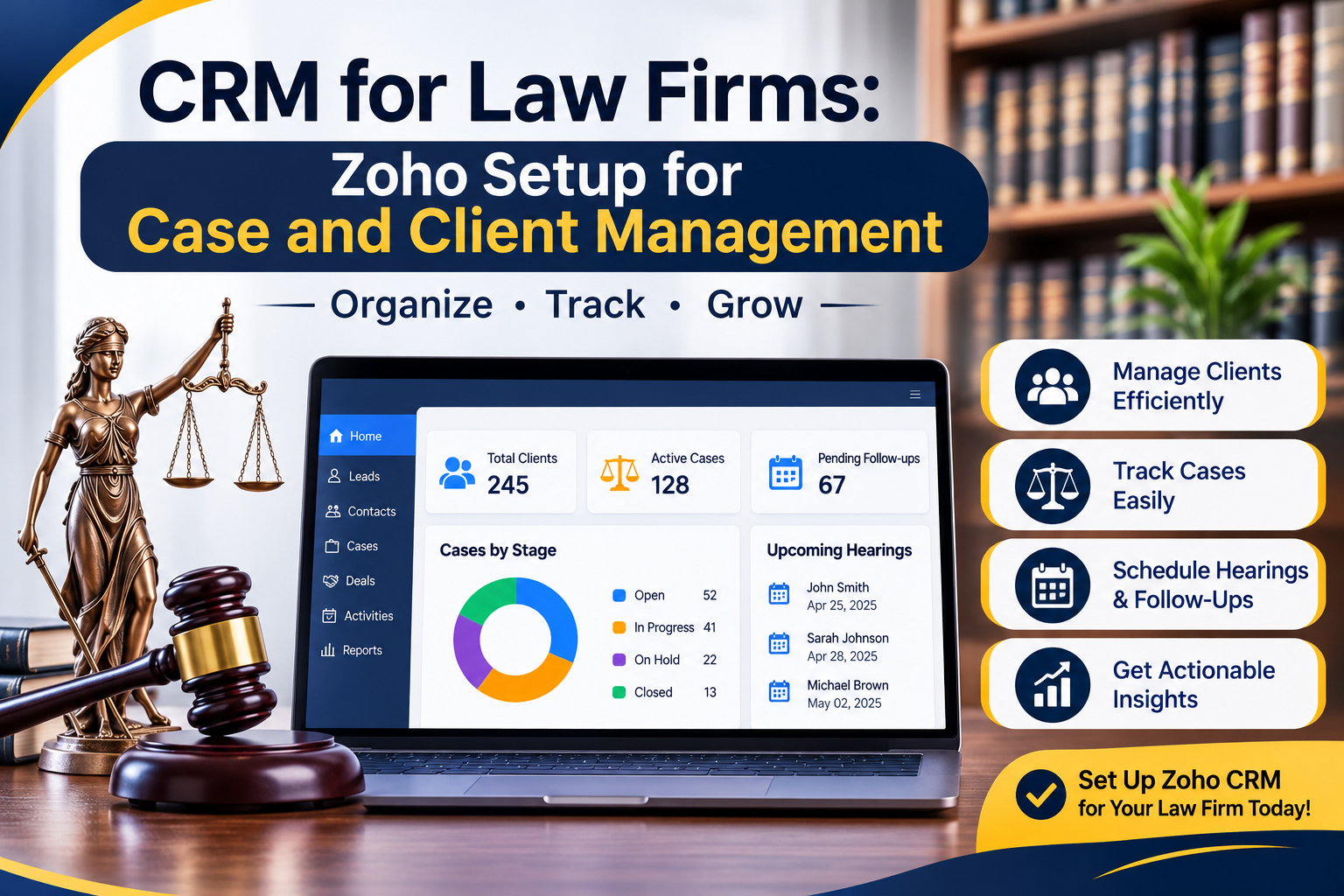
A missed follow-up on a new inquiry can cost a law firm a client. A missed detail on an active matter can cost much more. Yet many small and mid-sized firms still run intake from a shared inbox, track matters in spreadsheets, and rely on one paralegal’s memory for client history.
A CRM for law firms fixes the front half of that problem: who contacted you, where they came from, what stage their matter is in, and what needs to happen next. Zoho CRM can do this well, but only when it is configured around how a firm actually works instead of being used as a generic sales tool.This guide covers a practical Zoho CRM setup for case and client management, including the modules, automations and permissions we would put in place through our Zoho implementation services, and the point where dedicated legal software should take over.What a CRM Does for a Law Firm (and What It Doesn’t)
For a law firm, a CRM is a single place to manage relationships and matter progress. Done properly, it gives you:- One client record with every contact, email, call and note attached
- Intake tracking from first inquiry to signed engagement letter
- Matter stages that show what is open, stalled or ready to close
- Tasks and reminders so follow-ups are assigned, not remembered
- Reports on referral sources, conversion rates and workload per attorney
Which Law Firms Benefit Most From a CRM?
A CRM earns its keep wherever client relationships and follow-up drive revenue. That covers most practices, but the setup looks different depending on the work.Solo and small firms. Intake and follow-up are usually the weak spot. A lean setup with leads, matters, tasks and a few automations is often enough.Consumer-facing practices. Firms handling immigration, family, personal injury or estate planning matters often field a steady stream of inquiries. Response time, referral tracking and clear stage visibility matter most here.Business and corporate practices. Relationships last longer and involve several contacts per client. Accounts, contact roles and matter history carry more weight than fast intake.Mid-sized firms. Permissions, reporting by attorney or practice group, and a consistent process across teams become the priority. Plan roles and layouts before you add users.Why Confidentiality Shapes the Whole Setup
Law firms cannot treat client data like ordinary sales data. Under ABA Model Rule 1.6(c), lawyers must make reasonable efforts to prevent unauthorized disclosure of, or access to, information relating to a client’s representation, and the ABA’s comment on that rule calls for a risk-based analysis of what counts as reasonable. You can read the ABA’s overview of ethics and cybersecurity duties for the full context. Supervisory duties apply too, so partners are responsible for how staff handle client information in the system. Because a cloud CRM is an outside service provider, the comment to Model Rule 5.3 specifically addresses a lawyer’s duties when using an internet-based service to store client information.State rules differ from the Model Rules, so confirm what applies in your jurisdiction. For CRM setup, the practical takeaway is simple: decide who can see what before you load a single client record. Zoho gives you the controls to do this. Zoho CRM offers role-based access, profile permissions, field-level restrictions and data-sharing rules, plus audit trails that log actions taken in the system. Zoho’s own security overview explains how these fit together.Step-by-Step: Setting Up Zoho CRM for a Law Firm
Step 1: Map Your Process Before You Touch the Software
Write down the journey of a matter in plain language: inquiry, conflict check, consultation, engagement letter, active work, resolution, closure. Note who owns each step. If your intake process differs by practice area, such as immigration versus family law, list each version separately. Most failed CRM projects trace back to skipping this step, and our CRM requirements checklist is a good way to organize it.Step 2: Structure Your Modules
Zoho’s default modules are built for sales, so rename and extend them to match legal work:- Leads become prospective clients and inquiries
- Contacts hold individuals, including clients, witnesses and referral partners
- Accounts can represent corporate clients or organizations
- A custom Matters module becomes the heart of the system, linked to a client and an attorney
Step 3: Add the Right Fields
Keep fields useful, not exhaustive. Every field should either drive a report, trigger an action or help someone do their job. A solid starting point for the Matters module:| Field | Type | Purpose |
|---|---|---|
| Matter Name | Text | Quick identification |
| Matter Type | Picklist | Practice area, drives reporting |
| Client | Lookup | Links to the contact or account |
| Responsible Attorney | User lookup | Ownership and workload views |
| Stage | Picklist | Controlled by your workflow |
| Opened Date | Date | Ageing reports |
| Key Date | Date | Next important milestone |
| Fee Arrangement | Picklist | Hourly, flat fee or contingency |
| Conflict Check Status | Picklist | Pending, cleared or flagged |
| Referral Source | Picklist | Marketing and referral ROI |
Step 4: Set Up Intake and Conflict-Check Flow
Intake is where firms lose the most value. Connect your website contact form to Zoho CRM so every inquiry lands as a lead automatically, with its source recorded. If you need help wiring forms, email and other tools together, our Zoho integration services cover exactly this. Then build a simple rule set:- New inquiry is assigned to the intake owner
- A task is created to respond within a set time
- Conflict Check Status starts as "Pending"
- The lead cannot move to "Consultation Booked" until the conflict check is cleared
Step 5: Build Matter Stages That Reflect Reality
A typical matter pipeline might read: Intake, Engagement Sent, Engaged, In Progress, Awaiting Client, Awaiting Third Party, Resolved, Closed. The "Awaiting" stages matter more than they look, because they show you where matters stall and who needs a nudge.Add required fields at key transitions. For example, a matter cannot move to "Engaged" without an attached signed engagement letter and a fee arrangement selected.Step 6: Handle Documents and E-Signatures
Engagement letters, consent forms and authorizations need a clean path from draft to signed. Zoho Sign can be connected to Zoho CRM so a document is sent for signature from the client record and the signed copy returns to the same place. Store only what you need in the CRM, and keep your main document repository as the source of truth for case files.Step 7: Automate the Routine Work
Once the structure is stable, add automations that save hours without removing judgment:- Welcome email and onboarding checklist when a matter is opened
- Reminder to the responsible attorney if a matter has had no activity for a set number of days
- Task creation when a matter enters an "Awaiting Client" stage
- Review request after a matter is closed
- Weekly summary of open matters per attorney
Step 8: Lock Down Permissions and Encryption
This is the step firms most often rush. Build roles around real job functions: attorneys, paralegals, intake staff, billing and administrators. Then limit access so people see only the matters they work on, using data-sharing rules. If your firm needs an "ethical wall" between teams, plan it now, because retrofitting is painful.On encryption, know the limits before you design your fields. Zoho states that encryption is available for standard modules (except Tasks, Calls and Meetings) and custom modules, but field-level encryption applies only to custom fields, not standard ones. That means a sensitive item such as a case-specific identifier should be placed in a custom field. Zoho also notes that attachments are encrypted by default once added to the CRM. See Zoho's data encryption documentation for the details. Also turn on multi-factor authentication for every user, and review the audit log regularly. Zoho keeps audit logs for up to three years, and admins can export them. If attorneys work remotely, ABA Formal Opinion 498 on virtual practice applies the same duty of reasonable precautions to how client information is transmitted.Reports and Dashboards a Law Firm Should Track
A CRM is only as useful as the questions it can answer. Start with a small set of reports that the managing partner and the intake lead will actually open:- Inquiries by referral source, so you know which channels produce real clients
- Inquiry-to-engagement rate, showing how many leads become signed matters
- Time to first response, since slow replies lose prospective clients
- Open matters by stage, to spot where work is stalling
- Matters per attorney, for balanced workloads
- Matter ageing, to flag files that have been open longer than expected
Common Mistakes to Avoid
Putting everything in notes: Free-text notes are hard to search, report on and restrict. If a detail matters, give it a field.Giving everyone full access: Convenience at setup becomes a confidentiality problem later. Start restrictive and open up where needed.Copying a sales pipeline: Legal matters do not move like deals. Build stages around your actual process.Migrating messy data: Importing duplicate or inconsistent spreadsheet records just moves the mess into a new system. Clean first. Our post on moving from Excel and legacy systems to Zoho covers this in depth.Skipping training: A well-built CRM that attorneys avoid is worse than a simple one they use. Run a short session for each role and keep a one-page cheat sheet.Having no owner: Someone needs to be responsible for fields, users and reports. Without one, the system drifts.Skipping a pilot: Launching to everyone at once hides problems until they affect real clients. Start with one team or practice area first.Treating the CRM as your docket: Relying on CRM reminders as your only deadline system is risky. Keep court and statutory deadlines in your docketing tool.A Realistic Rollout Plan for Your First 60 Days
A phased rollout reduces disruption and gives the team time to adjust. A sensible plan looks like this:- Weeks 1 to 2: Plan: Map your process, agree the stages, decide who sees what, and clean the data you plan to import.
- Weeks 3 to 4: Build: Set up modules, fields, roles, the intake flow and your first automations.
- Weeks 5 to 6: Pilot: Let one team or practice area use the system with real inquiries, and collect feedback.
- Weeks 7 to 8: Launch: Fix what the pilot revealed, train every role, and switch the full firm over.