If I had to pick one thing to teach a new Zoho CRM admin, it would be this. Master the workflow rule, and you can handle 80% of what your business will ever need to automate, follow-up tasks, reminder emails, field updates, notifications, even calling custom functions for more advanced logic.
In this guide, I’ll walk you through exactly how workflow rules work, the mistakes I see most often when auditing client CRMs, and the small configuration details that quietly break automations months after they were set up.
Quick stat: In my experience auditing existing Zoho CRM instances, roughly 1 in 3 have at least one workflow rule misfiring, usually because of two things: an unchecked assumption about the “repeat” checkbox, or conditions stacked in the wrong order. Both are covered below.
Want your Zoho CRM automation audited or built right the first time? Schedule a free consultation with our team.
What Is a Zoho CRM Workflow Rule?
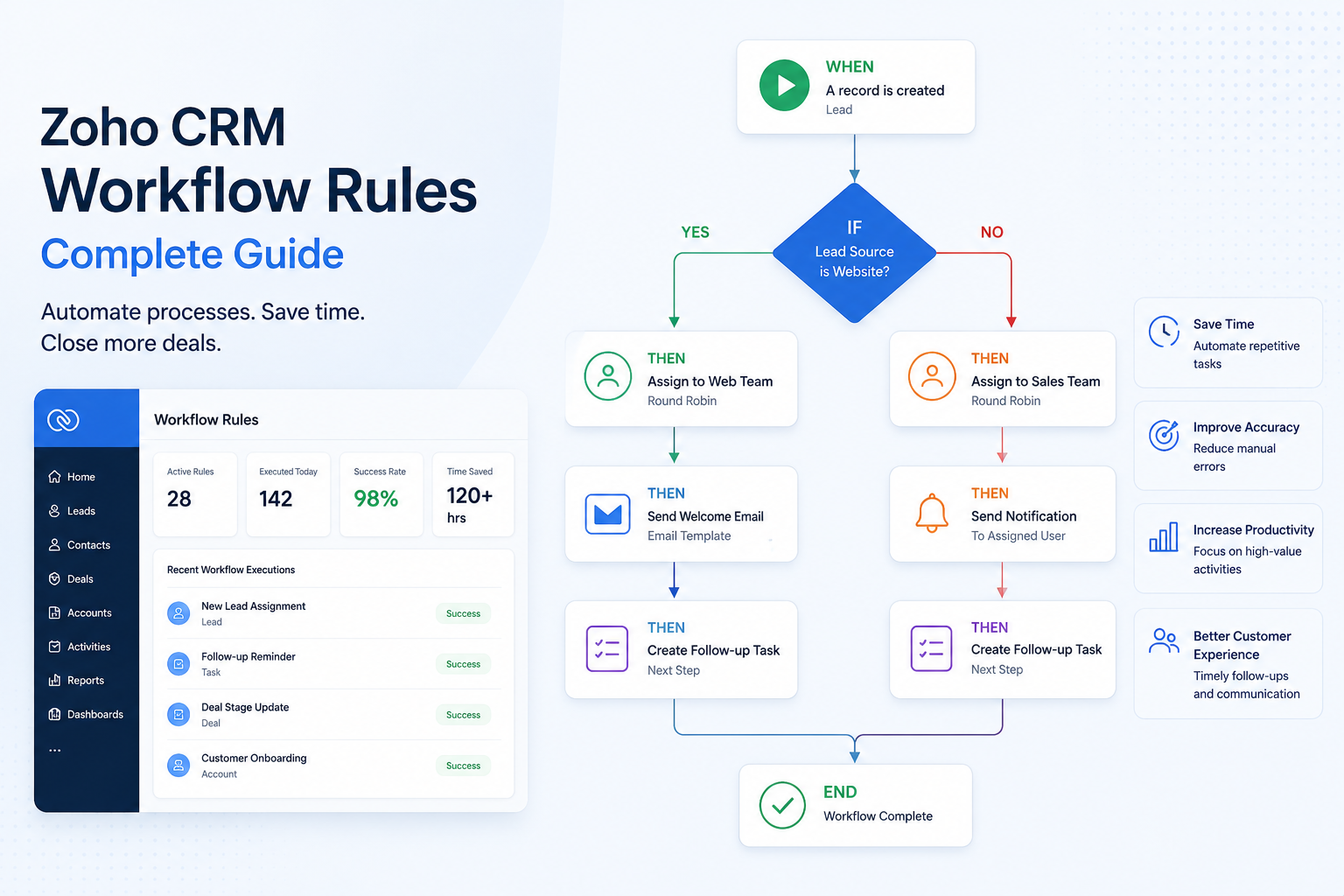
A workflow rule is Zoho CRM’s core automation engine. In plain terms, it’s an if-then statement: if a record meets certain conditions, then the system automatically does something, sends an email, creates a task, updates a field, or triggers a custom function.
Zoho CRM actually gives you a few tools for automation, workflow rules, Blueprints, and Command Center and it’s easy to feel like you need to learn all three before you can automate anything. You don’t. Here’s how I explain it to clients:
Workflow rules: your default. Simple, flexible, if-then automation.
Blueprints: more rigid, state-driven processes (think: enforced multi-step approval flows).
Command Center: cross-application automation, connecting CRM to other Zoho apps visually.
My rule of thumb after 3 years of builds: start with a workflow rule. Only reach for something heavier when a workflow genuinely can’t do the job. Keeping most of your automation logic in one place also makes your CRM far easier to audit later and trust me, you will need to audit it eventually.
If you’re still deciding which Zoho apps and automation tools fit your process, our Zoho application solutions overview breaks down where CRM automation fits alongside the rest of the Zoho One suite.
(Full comparison table below in the “Workflow vs Blueprint vs Command Center” section.)
The If-Then Anatomy: Trigger + Conditions → Actions
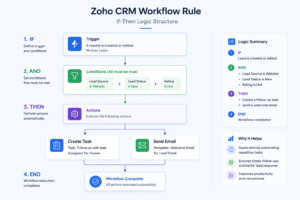
Every workflow rule, no matter how complex it looks, breaks down into two halves:
| Part | What It Does | Example |
| IF (Trigger + Conditions) | Defines when the rule checks and what must be true. | A deal is created or edited, AND its amount is greater than $20,000. |
| THEN (Actions) | Defines what happens once the “if” is satisfied. | Create a follow-up task for the sales manager. |
I always tell clients to picture it visually:
IF (Trigger Fires)
        │
        ▼
AND (Conditions Are True)
        │
        ▼
THEN (Run the Actions)
        │
        ▼
Create Task → Send Email → Update Field → Call Function
Once you can mentally split any workflow into its “if” and its “then,” the builder stops feeling intimidating. Everything else, trigger type, AND/OR logic, evaluation order, is just detail layered on top of that same basic shape.
Real example from my own builds: A logistics client wanted their ops team notified the moment a shipment record’s status flipped to “Delayed.” The workflow was almost embarrassingly simple once broken down: IF status = Delayed, THEN send an email to the ops distribution list and create a task for the account owner. Two minutes to build. It’s still running, untouched, a year later, which is exactly the point.
The 3 Trigger Types
Trigger Types: When Should a Workflow Fire?
Before a workflow can do anything, you need to tell Zoho when to check it. There are three trigger types, though in practice, two of them do almost all the work.
| Trigger Type | Fires When | Best For | My Recommendation |
|---|---|---|---|
| Record Action | A record is created, edited, deleted, or created-or-edited to match criteria | The default for most automations | Use “create or edit” it’s the most flexible and covers the majority of real-world cases |
| Date / Date Time | On, or relative to, a date field (e.g., 7 days before expected close) | Time-based follow ups, renewals, post sale outreach | Great for deal pipelines, I use this constantly for “X days before close” reminders |
| Score | A record’s score crosses a defined threshold | Narrow maintenance cases | Use sparingly, see the trap below |
“Create or edit” is my default 90% of the time. It doesn’t matter whether a record was created already matching your criteria, or got edited into matching them later, the workflow fires either way. That flexibility means I almost never have to think twice about which record-action option to pick.
If you need automation that goes beyond CRM alone say, pushing a record update into another Zoho app that’s usually where Zoho Flow picks up where a standard workflow rule leaves off.
A mistake I’ve seen firsthand: A client had a score-based workflow set to fire once a lead’s score crossed 50, intended to notify sales of a “hot lead.” The problem? As the score kept climbing (55, 60, 70…), the workflow kept re-satisfying the same condition and firing again and again. Sales was getting duplicate “hot lead” alerts for the same person, multiple times a day. We swapped it for a create-or-edit trigger with a tighter condition, and the noise stopped immediately. If your automation is based on a threshold that can keep climbing, think twice before using a raw score trigger.
AND vs OR Logic – Getting Conditions Right
Conditions are where you define exactly what a record has to look like for the “if” to be true. By default, Zoho joins multiple conditions with AND – meaning every single condition has to hold true at once.
In plain English, an AND condition might read: “The deal stage is Needs Analysis, and the amount is over $20,000.” Both parts must be true.
Sometimes, though, you want more flexibility. An OR condition might read: “The deal stage is Needs Analysis, and either the quoted amount is over $20,000 or the known budget is over $15,000.” Written out with logic grouping, that’s:
Stage = Needs Analysis AND (Amount > 20,000 OR Budget > 15,000)
Watch your parentheses. This is the one place I see admins trip up most. Once you start mixing AND and OR, how you group the conditions completely changes the meaning of the rule. “One AND two OR three” can produce very different results depending on the grouping, so always read your logic back in plain English before saving.
The “Repeat This Workflow” Checkbox Trap
If you pick a create-or-edit trigger, Zoho shows you a checkbox along the lines of “repeat this workflow whenever a record is edited.” It sounds harmless. It is not.
Here’s what actually happens if you check it: every single edit to that record re-fires the workflow – not just the edit that first satisfied your condition. I’ve seen this cause a sales rep updating notes on a deal to accidentally trigger the same client-facing email five times in one afternoon, simply because each save re-matched the condition.
My rule: leave the repeat box unchecked unless you can name the exact reason not to.
There’s exactly one scenario where I’ll use it: field-level auditing. If you need to catch every time a specific field changes, say, a data governance team monitoring edits to the “Lead Source” field because permissions have gotten a little loose – the repeat behavior can actually work in your favor there. Outside of that, I treat this checkbox as a warning sign, not a setting.
How Zoho Evaluates Multiple Criteria (Order Matters)
This is the part that trips up even experienced admins, and it’s the single most common root cause I find when auditing a “broken” workflow.
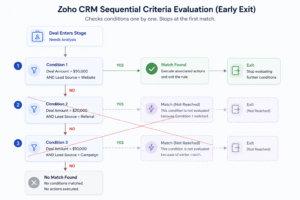
A workflow can hold multiple criteria blocks, but Zoho evaluates them sequentially, top to bottom and the moment a record satisfies one block, that block’s actions run and the workflow exits immediately. It never checks the blocks below.
Here’s an example I’ve genuinely walked into with a client:
Deal enters Needs Analysis, value = $70,000
↓
Check condition 1 (Amount ≥ 20,000) → matches
↓
Run condition 1 actions → EXIT
✕ (condition 2, the $50,000+ “high-tier” rule, never runs)
The client had built a $50,000+ “high-tier” action below a broader $20,000+ rule. Every high-value deal was quietly getting the standard treatment instead of the VIP one, for months, because the broader rule sat first in line and grabbed every deal before the specific rule ever got a chance.
The fix is almost always reordering: put your most specific, highest-bar condition at the top, and your broad catch-all condition below it. This isn’t a limitation, once you design around it, the early-exit behavior actually makes workflows predictable and easy to reason about.
Insight from my audits: roughly half of the “why didn’t this workflow fire correctly” tickets I’ve debugged over the years come down to this exact issue, condition order, not condition logic.
Workflow Rules vs Blueprints vs Command Center
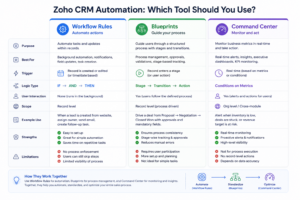
Clients often ask me which automation tool they should be using. Here’s the breakdown I actually use in client meetings:
| Tool | Best For | Complexity | When I Recommend It |
|---|---|---|---|
| Workflow Rule | General if-then automation, tasks, emails, field updates, notifications | Low | Default choice for ~80% of automation needs |
| Blueprint | Enforced, state-driven processes (e.g., mandatory approval steps before a deal can move stages) | Medium–High | When a process must be followed in a strict sequence, with required fields at each stage |
| Command Center | Cross-application automation (e.g., a Zoho Desk ticket triggering a Zoho CRM update) | High | When your automation needs to bridge multiple Zoho apps visually, without heavy scripting |
If you’re not sure which one you need, start with a workflow. You can always graduate to Blueprint or Command Center later, but I’ve rarely seen a client actually outgrow well organized workflow rules.
My Workflow Naming & Governance Checklist
CRM instances accumulate workflows fast, I’ve walked into accounts with 60+ workflow rules and zero documentation. Here’s the checklist I run through on every implementation, and the one I use when auditing a messy CRM for a new client:
- Name for the trigger, not the outcome. A name like “Deal in Needs Analysis over $20k, create analysis task” tells future-you exactly what fires and why, without opening the rule.
- Default to create-or-edit unless you have a specific reason to trigger differently.
- Leave the repeat checkbox unchecked, treat it as an exception, not a default.
- Group criteria by shared context. Keep related conditions in one workflow tied to a common trigger, rather than crammed together with unrelated logic.
- Order conditions from most specific to most general to work with (not against) the early-exit behavior.
- Test in a sandbox first. Never edit production workflows live, confirm behavior before it touches real client data.
- Review quarterly. Automations that made sense a year ago often don’t match your current sales process.
Honestly, this checklist alone is usually enough to turn a chaotic, undocumented CRM into something any admin on the team could pick up and understand in an afternoon. Pair it with a look at our hidden Zoho features that save teams hours each month for a few more quick automation wins beyond workflow rules alone.
Common Mistakes to Avoid
Pulling straight from patterns I’ve seen across dozens of implementations:
- Checking the repeat box on a create-or-edit trigger and unintentionally spamming clients or reps with duplicate emails/tasks
- Using a raw score trigger that keeps re-firing as a score climbs past the threshold Stacking unrelated criteria blocks into one workflow with no shared logic, making it impossible to audit later
- Ignoring sequential evaluation and placing a broad condition above the specific one you actually meant to fire first
- Leaving workflows unnamed or undocumented, then trying to make sense of them a year later
- Editing workflows directly in production without testing in a sandbox
FAQs
What is a workflow rule in Zoho CRM?
A workflow rule is an automation built on an if then structure, a trigger and conditions form the “if,” and actions like sending an email, creating a task, or updating a field form the “then.” It’s the most flexible and widely used automation tool in Zoho CRM.
What triggers a Zoho CRM workflow?
Three options: a record action (created, edited, deleted, or create-or-edit), a date or date-time field relative to a specific date, or a record’s score crossing a threshold. Record action and date-based triggers cover the vast majority of real-world use cases.
Should I check the “repeat this workflow” box?
In almost every case, no. It fires the workflow on every single edit to a record, which can spam clients with duplicate emails or flood your CRM with duplicate tasks. The main exception is narrow, field-level audit scenarios.
Can I use both AND and OR in workflow conditions?
Yes. Conditions default to AND, but you can switch to OR and group logic with parentheses. Just be careful, mixed AND/OR logic can produce very different outcomes depending on how it’s grouped.
How does Zoho decide which workflow fires first?
Workflow rules that share a trigger fire in the order they appear on the workflow rules list page. If your automations need to run in a specific sequence, arrange them accordingly or consider combining them into a single workflow.
Workflow vs. Blueprint – which do I need?
Start with a workflow. Reach for a Blueprint only when you need to enforce a strict, state-driven process with required steps, like a mandatory approval flow that can’t be skipped.
Final Thoughts
Workflow rules are simple enough to start using in an afternoon, but easy to misconfigure in ways that don’t show up until months later, a duplicate email here, a misfired action there. After 3 years of building and untangling these for clients across industries, the pattern is almost always the same: it’s not the tool that’s complicated, it’s the small settings, the repeat checkbox, the condition order, the missing naming convention that quietly cause problems
Related reading
- See a live build: AI call intelligence and lead automation for an insurance agency
- Choosing a platform first? Zoho CRM vs Salesforce vs SugarCRM
- Need help building yours? Our Zoho implementation services