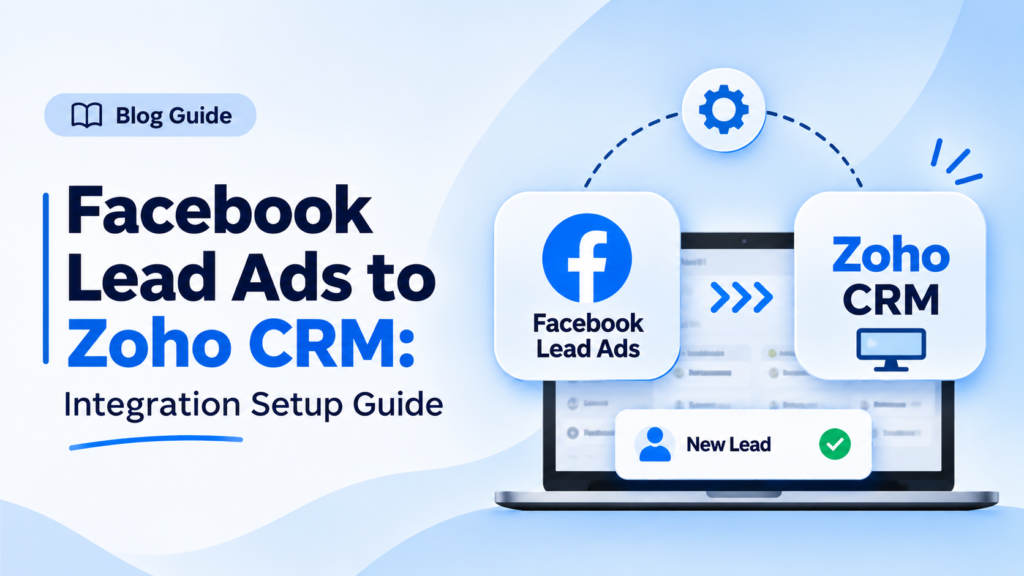
A Facebook lead ad can bring in dozens of enquiries in a single day. If those leads sit in Meta’s lead centre until someone downloads a spreadsheet, the speed advantage of an instant form disappears. Zoho points out that exporting and re-importing leads by hand invites errors and duplicate records, and leaves the CRM missing leads your team could be following up.
A Facebook Lead Ads CRM integration closes that gap. Each form submission is sent to Zoho CRM as it happens, with the source, owner and campaign already attached. This guide covers every route into Zoho CRM, a full setup using Zoho’s LeadChain extension, the older Zoho Social route, Zapier as a no-code alternative, and the fixes for the problems that usually block a first sync.
Quick answer: To send Facebook Lead Ads to Zoho CRM, install LeadChain from the Zoho CRM Marketplace, create a chain with Facebook Lead Ads as the source and Zoho CRM as the destination, choose the ad account, Page and form, pick the CRM module, tag, layout and assignment rule, map the fields, run Test Connection, then click Save and Publish.
Why exporting leads by hand falls short
Downloading a CSV from Facebook and importing it into the CRM works for a one-off campaign. It breaks down as soon as ads run every week. Someone has to remember to export, map columns again and check for duplicates, and the delay means a person who filled in your form this morning hears from you tomorrow.
Zoho describes the fix as keeping the CRM updated in real time so that sales, marketing and customer service all work from the same information. That is what an integration gives you: no copying, no waiting, and a record you can assign, track and report on from the first minute.
Four ways to connect Facebook Lead Ads to Zoho CRM
| Method | Best for | What to know |
|---|---|---|
| Zoho LeadChain | Most Zoho CRM teams | Zoho’s own Marketplace extension; the route Zoho points new users to |
| Zoho Social Lead Forms | Teams already using Zoho Social | Module deprecated for sign-ups since 19 April 2024 |
| Zapier | Teams that already run Zapier | Third-party; trigger is New Lead, action creates or updates a CRM record |
| Custom build (Meta APIs and webhooks) | Unusual data flows | Needs a developer to build and maintain |
For most teams, LeadChain is the right starting point. A few points from Zoho’s LeadChain overview are worth knowing before you commit:
- LeadChain is a separate subscription. It is not included with Zoho CRM or bundles such as Zoho One.
- It needs a paid Zoho CRM edition: Standard, Professional, Enterprise, CRM Plus, Zoho One or Ultimate. If your CRM drops to an unsupported or free edition, you lose access to LeadChain through the CRM.
- It handles more than Facebook. Zoho lists LinkedIn, TikTok, Google Ads lead forms, WhatsApp and Snapchat as lead sources, so the same setup logic carries over if you advertise elsewhere.
Check Zoho’s LeadChain page for current plan details before you start.
Before you start
A little preparation avoids most first-sync failures.
- Facebook access: you need admin rights on the Facebook Page, the ad account and the lead form. If the Business Manager admin has restricted lead access, ask them to grant it.
- A live lead form: Zoho notes you can create a lead ad with an instant form in Meta Ads Manager or Meta Business Suite. Build and publish it first so LeadChain has a form to select.
- Zoho CRM admin access on a supported paid edition.
- A destination module: decide whether leads land in Leads or Contacts. Most teams choose Leads so they can qualify before converting.
- A page layout with the fields you want to capture. Make sure it is visible to the account doing the setup.
- An assignment rule for the Leads module, so new leads reach the right person automatically. Zoho’s guide to assignment rules shows how to build one.
- A Lead Source value such as Facebook Lead Ads. If you have not set this up before, follow our guide to adding lead source in Zoho CRM.
Step by step: connect Facebook Lead Ads to Zoho CRM with LeadChain
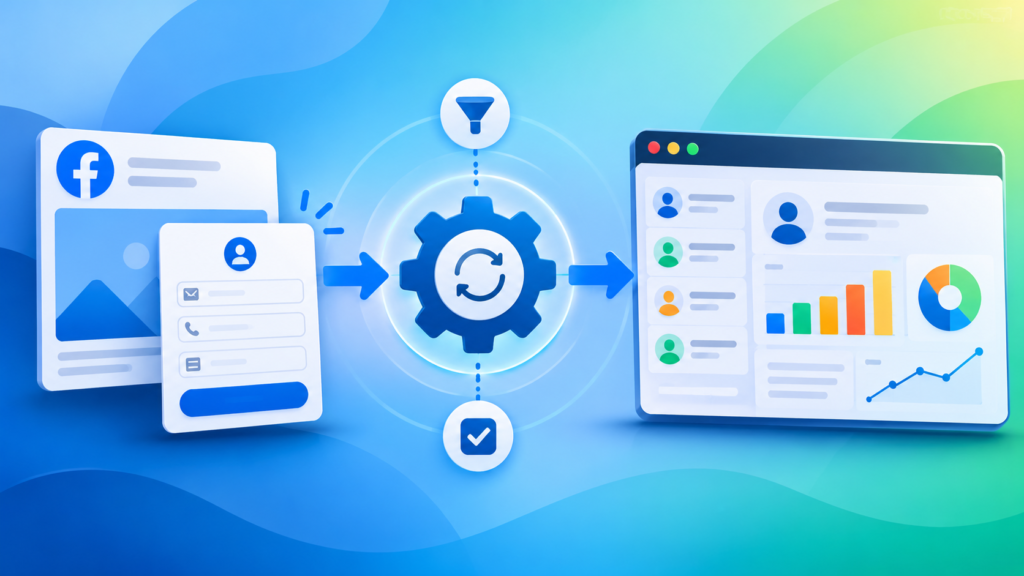
Zoho describes the setup as two stages: connecting the apps, then mapping the fields. Here is the full sequence, based on Zoho’s Facebook Lead Ads guide for LeadChain.
- Install LeadChain from the Zoho CRM Marketplace.
- Open the LeadChain module and click + Create new chain.
- Give the chain a clear name, for example the campaign or form it serves.
- Choose Facebook Lead Ads as the source and Zoho CRM as the destination.
- In the Source section, pick your Facebook account. If it is not connected yet, click + New Facebook Account.
- Select the Facebook ad account, the Page and the form you want to sync.
- In the Destination section, choose the module (Leads or Contacts).
- Choose a CRM tag and campaign to segment the incoming leads.
- Choose a page layout and an assignment rule.
- Use the toggle to decide whether LeadChain should update or add leads.
- Click Continue, map the fields (next section), run Test Connection, then click Save and Publish. You can also use the drop-down to Save as Draft and finish later.
If you send data to or from a custom module, Zoho says you must create a custom field to store the lead ID first. If you need help with that, see our Zoho customization and automation services.
Choose what happens to each lead
Three destination settings decide how leads behave once they arrive:
- CRM tag: add a tag such as Facebook Lead Ads, then build a custom view from it so the team can filter this channel quickly.
- CRM campaign: link the leads to an existing campaign, for example a nurture email series, and every new lead is associated automatically.
- Assignment rule: route leads to a team or owner without anyone assigning them by hand. For routing logic beyond the basics, our explainer on Zoho CRM workflow rules covers the if-then patterns that sit on top, and our Zoho Customization & Automation services cover anything more custom.
Map the fields
Mapping decides what data reaches the record. For each Zoho CRM field you can pick a field from your Facebook form or set a default value. Two habits pay off:
- Set a default Lead Source. Zoho’s own example is a default of Facebook Lead Ads, so every lead from the chain is easy to identify later.
- Map the extra fields. Zoho notes you can map values such as ad name and campaign name, including any tracking parameters you added to the form. Meta explains how to set up tracking parameters for lead ads. Captured on the record, they tell you which ad produced which lead.
Run Test Connection
Before you publish, click Test Connection, enter details for a test lead and click Run test. This checks that the data lands in the right CRM fields. Once the test succeeds, save and publish the chain.
Test with Meta’s tool and fix the most common error
For an end-to-end check, create a test lead in Meta’s Lead Ads Testing Tool and confirm it appears in Zoho CRM. Keep special characters out of the test data, as Zoho advises.
If the test returns “Failed to receive the Lead event in real time”, Zoho says it usually means it lacks the required CRM access in Meta settings. The fix:
- Open Meta Leads Access settings.
- Select your Facebook Page.
- Under CRMs, check that Zoho Social is listed. If it is not, click Add CRM, choose Zoho Social and grant access.
- Return to the testing tool, click Run test again and confirm the status shows Success.
The older route: Zoho Social Lead Forms
If your team already uses Zoho Social, you may have its Lead Forms module connected. According to Zoho Social’s documentation, the Lead Forms module is deprecated for anyone signing up to Zoho Social from 19 April 2024, and Zoho directs new users to LeadChain instead. Lead Forms is available on Premium, Agency and Agency Plus plans.
For existing users, the setup works like this:
- In Zoho CRM, go to Setup > Channels > Social and import the Social brand you want to link.
- In Zoho Social, open the Lead Forms module and click Set Up Facebook Lead Ads Now.
- Log in to Facebook and choose the ad account. Each brand can connect only one.
- Click Proceed to let Zoho map the fields automatically, or Edit Mapping to do it yourself.
- Apply an assignment rule from the Lead Forms module.
You must be an admin on the Zoho Social account, the Zoho CRM account, and the Facebook account, Page and ad account involved. Fields marked with an asterisk are mandatory and must be mapped for the sync to run.
The no-code alternative: Zapier
Teams that already automate with Zapier can use Zapier’s Facebook Lead Ads and Zoho CRM integration. The trigger is a new lead from Facebook Lead Ads, and the action adds or updates a record in Zoho CRM. Zapier says you can search for an existing lead first so that matching records are updated instead of duplicated. It works, but it adds a third-party tool and a second place to monitor.
Troubleshooting: when leads do not arrive
| Problem | Likely cause | What to do |
|---|---|---|
| Test lead never appears | Zoho lacks CRM access in Meta | Add Zoho Social under CRMs in Meta Leads Access |
| Sync stops after setup (Zoho Social) | Permissions missing on the Facebook account | Assign CRM & People access to Zoho Social and your Facebook admin account |
| Leads fail to sync | A mandatory CRM field is not mapped | Map every asterisk field, or make the field optional in CRM |
| Leads fail to sync | The mapped layout is not visible to the connected admin | Give that admin visibility of the layout |
| Leads from one form only appear for one account | The form is used in several ad accounts | Zoho Social captures leads from just one ad account per brand; keep forms unique |
| Connection looks broken | Expired Facebook connection | Reconnect the Page and ad account |
| Custom module will not sync | No field to hold the lead ID | Create a custom field |
After the leads arrive: make them useful
Getting the lead into the CRM is half the job. The other half is what happens next.
Follow up quickly
Build workflow rules that create a task, send an alert or update a field the moment a Facebook lead is created. A lead that reaches the right person while the enquiry is fresh is far easier to convert.
Report by source
Because every lead carries a Lead Source and, if you mapped them, ad and campaign names, you can see which ads produce qualified leads and not just form fills. Our walkthrough on building a Zoho Analytics sales dashboard shows how to put that on one screen, and our real-time sales dashboard case study shows it in practice. If you would rather have the reports built for you, see our Zoho Analytics & Reporting services.
Mind sensitive data
If your forms ask about health conditions or other sensitive details, read our HIPAA guide for Zoho CRM before collecting them.
Industry fit
Lead ads suit businesses with fast-moving enquiries. See how the same flow supports real estate and insurance teams in Zoho CRM.
Best practices
- One form per offer: it keeps field mapping and reporting clean.
- Test after every form change: editing a form can change its fields, so run Test Connection again after any edit.
- Keep one owner: name one person responsible for the chain, the Facebook permissions and the CRM mapping.
- Review the setup regularly: a Zoho CRM audit is a good moment to confirm that every active chain still points at a live form.
Need a hand setting this up?
The basic connection takes under an hour for most teams. It gets more involved with several forms, strict routing rules, or ads on more than one platform. Our team handles this through Zoho integration services, and our Zoho CRM consultants in Texas are available for local support. You can book a free consultation to talk it through, try our free Zoho App Finder if you are unsure which Zoho apps fit, or browse our case studies to see similar projects.
Frequently asked questions
Can I connect Facebook Lead Ads to Zoho CRM without code?
Yes. Zoho describes the LeadChain setup as two steps, connecting the apps and mapping the fields, and it needs no coding. Zapier is another no-code route.
Can leads go to Contacts instead of Leads?
Yes. In the Destination section of the chain, you choose either the Leads or the Contacts module.
Will the integration create duplicate leads?
LeadChain includes a toggle that lets you choose whether to update or add leads. Test with a repeat submission to confirm the behaviour matches your process.
Does LeadChain work only with Facebook?
No. Zoho lists LinkedIn, TikTok, Google Ads lead forms, WhatsApp and Snapchat as lead sources too, plus Facebook conversion features on the paid tier.
What if I already use Zoho Social Lead Forms?
Check Zoho Social’s documentation for your plan. Zoho has deprecated the module for new sign-ups since 19 April 2024 and points new users to LeadChain.
Conclusion
A Facebook Lead Ads CRM integration turns a download-and-import chore into an automatic flow. For most teams, LeadChain is the cleanest route into Zoho CRM. Set the module, tag, campaign, layout and assignment rule on purpose, default the Lead Source, test with Meta’s tool, and keep one person accountable for the connection. Then build follow-up and reporting on top, so the leads your ads find actually become customers.