Introduction: Stop Wasting Time on Repetitive Tasks
You wear many hats in your business. Repetitive admin work should not be one of them.
Every week you may spend hours on tasks like these:
- Chasing overdue invoices
- Creating invoices by hand
- Sorting through emails
- Following up with customers
Zoho has automation features that can take much of this work off your plate. You do not need to be a tech expert to use them. Many are already inside the apps you use today.
In this guide, you will learn practical automations across Zoho CRM, Books, Desk, Mail, and Flow. Use them to cut manual work and get time back each month.
Want these set up without trial and error? Our team can set up Zoho CRM, Books, Mail, and Desk as one automated workflow built around your business.
Spend Less Time on Repetitive Admin Work
Get an automation plan built for your own workflows. Our experts will help you pick and set up the right Zoho automations.
1. Zoho CRM: Automate Your Sales Process
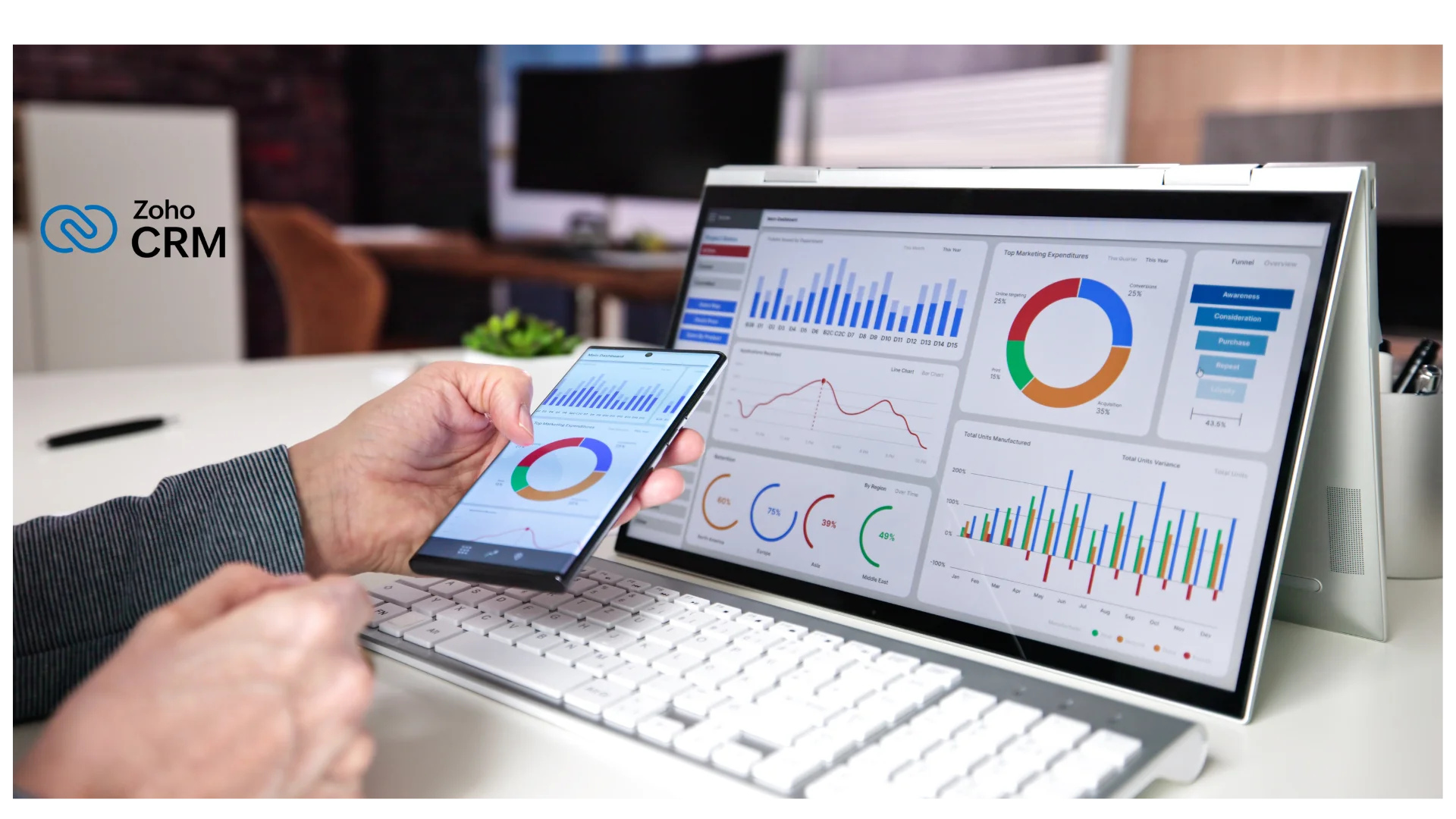
Manual sales pipelines lead to missed follow-ups and lost deals. Zoho CRM Blueprint helps your team follow the same steps on every deal.
Here are three ways to automate your sales work.
Automate Lead Assignment
Assigning each new lead by hand takes time. Zoho CRM assignment rules do it for you.
You can assign leads by:
- Location or territory
- Product or service interest
- Lead source or campaign
- Salesperson availability or team
Every enquiry reaches the right person. No one has to sort them.
Set Up Automated Follow-Ups
Salespeople often forget follow-ups when they manage many deals. Zoho CRM workflows can send emails, create tasks, and send alerts for you.
When a prospect sends an enquiry, a workflow can:
- Create a follow-up task for the salesperson.
- Send an acknowledgement email to the prospect.
- Alert the sales manager if the lead sits untouched.
- Schedule more activities based on the lead’s status.
This keeps your communication steady and cuts down missed deals.
Use Blueprint to Standardize Sales Steps
Blueprint lets you set how a record moves through each stage. You can:
- Require certain actions
- Make key fields mandatory
- Control who can move a deal forward
For example, a deal cannot move from qualification to proposal until the salesperson fills in the required fields. This keeps your data clean and your process consistent.
For complex sales teams, combine workflows, assignment rules, and Blueprint.
Illustrative Monthly Time Savings Across Zoho Apps
Note: These are illustrative estimates, not guaranteed or verified results. Real savings depend on your business size, current workflows, setup, and transaction volume.
Related Reading
- Business process automation with Zoho: reduce bottlenecks as you grow.
- 5 signs you’ve outgrown QuickBooks and spreadsheets: know when to move to one connected system.
- The ultimate Zoho CRM implementation guide: build a strong base before you automate.
2. Zoho Books: Automate Invoicing and Expenses

Accounting has many repeat tasks:
- Creating invoices
- Recording expenses
- Tracking unpaid bills
- Matching transactions
Doing them by hand gets slow as you grow. Zoho Books automates much of this and keeps your records tidy.
Schedule Automatic Payment Reminders
Chasing late payments is stressful. Set up reminders once, and Zoho Books sends them for you.
A simple schedule could be:
- A reminder before the invoice is due
- A notice on the due date
- An automatic follow-up when it is overdue
You can edit the message to keep a polite, professional tone. Your team also sees at a glance who has not paid.
Capture Receipts and Organize Expenses
Entering expenses by hand takes a long time. Zoho Books can scan receipts and pull out details such as:
- Supplier or merchant
- Date
- Amount
- Taxes
Staff then review a ready-made expense record instead of typing it from scratch. The features you get depend on your plan. Always check scanned data before you approve it.
Automate Recurring Invoices
Do you bill monthly for subscriptions, maintenance, or consulting? Do not create each invoice by hand.
Set up a recurring invoice with:
- Customer details
- Products or services
- How often to bill
- Start and end dates
- Auto-email settings
Zoho Books then creates the invoices on schedule. This is ideal for steady, predictable billing.
Keep Financial Records Organized
Zoho Books also supports:
- Bank feeds
- Transaction categorization
- Reconciliation workflows
Once bank transactions are imported, you can set rules to categorize repeat items. This makes reconciliation faster and your records more consistent.
3. Zoho Desk: Automate Customer Support

Support teams handle the same questions, assignments, and status updates all day. Without a clear system, agents spend more time sorting tickets than solving problems.
Zoho Desk helps with ticket rules, workflows, and ready-made replies. Here is how to use them.
Automatically Assign Support Tickets
Manual assignment slows down replies. Zoho Desk assignment rules can route tickets by:
- Support department
- Customer category
- Product or service type
- Ticket priority
- Keywords and other conditions
A billing question goes to the finance team. A technical problem goes to the tech team. Each request reaches the right person.
Set Up Workflow Rules and Notifications
Agents should not have to watch every ticket. Workflow rules can send an alert when:
- A high-priority ticket is created
- A ticket stays unresolved for too long
- A customer replies to a ticket
- A ticket status changes
- A manager needs to step in
Use Canned Responses for Common Questions
Customers often ask the same things about pricing, delivery, account access, and policies. With canned responses, agents insert a saved answer instead of typing it again.
Good topics for canned responses:
- Password reset steps
- Order status
- Billing and payments
- Product setup
- Common troubleshooting
Agents can edit each reply before sending. You save time and keep a personal touch.
Improve Support with AI Features
On some Zoho Desk plans, Zia can help with:
- Reply suggestions
- Sentiment analysis
- Spotting urgent conversations
Always review AI suggestions before you send them. This matters most for technical, financial, or sensitive issues.
Together, ticket rules, workflows, and saved replies make support more organized and cut repetitive work.
4. Zoho Mail: Automate Email Management

Email is still a main channel for business. But hundreds of messages a day can feel overwhelming. Zoho Mail has tools to organize your inbox and cut repeat work.
Organize Incoming Emails with Filters
Important customer emails can get buried under newsletters and alerts. Filters sort messages for you. You can:
- Move invoices to a finance folder
- Group emails from key customers
- Separate internal alerts from customer mail
- Catch messages with certain keywords
- Add labels to types of email
Use Email Templates for Repeat Messages
Do not write the same email again and again. Save templates for:
- Meeting confirmations
- Customer onboarding
- Service enquiries
- Payment follow-ups
- Project updates
Pick a template, add the personal details, and send.
Schedule Emails in Advance
Not every email needs to go out right away. Zoho Mail lets you pick the send time.
For example, write a follow-up at the end of the day and schedule it for the next morning. This helps when you work across time zones or send regular updates.
Manage Team Communication
Shared department email addresses can get messy. Depending on your plan, Zoho Mail offers shared mailboxes and email delegation. Teams can then manage group email without everyone opening the same messages.
Filters, templates, scheduling, and shared mailboxes together make email far easier to handle.
5. Connect Zoho Apps for End-to-End Workflows

Automating one app helps. The bigger gains come when your apps work together.
When sales, accounting, and support use separate tools, staff must copy data by hand. Connecting your Zoho apps removes much of that work.
Connect Zoho CRM with Zoho Books
Sales and finance teams need the same customer data. If they work apart, staff enter details twice. With CRM and Books connected:
- Customer data is shared between both apps.
- Sales can see key financial details.
- Finance can use customer details from CRM.
- Invoice work is easier to manage across teams.
What syncs depends on your integration settings.
Connect Zoho Desk with Zoho CRM
Support agents need to see customer history and past talks. When Desk and CRM are linked, they do not have to switch between tools.
For example, a customer contacts support about a recent purchase. The agent sees the customer’s CRM details and gives a more informed answer.
Use Zoho Flow for Cross-App Automation
Zoho Flow connects your apps and starts an action in one when something happens in another. For example, a flow can:
- Receive a new lead from a connected app.
- Create or update the CRM record.
- Notify the right salesperson.
- Start another action in a connected app.
This cuts data entry and keeps teams in sync. If an app has no direct integration, you can use custom automation to connect it.
6. How to Roll Out Zoho Automation Without Disruption
Knowing the features is only step one. You also need to understand your own processes and priorities.
Do not automate everything at once. Start with the tasks that waste the most time.
Step 1: Find Repetitive Tasks
- List the daily tasks of each team member.
- Look for repeat data entry, recurring emails, manual alerts, invoice creation, and status updates.
- Ask your staff where time is lost.
Step 2: Pick the Right Zoho App
- Zoho CRM: sales and lead management
- Zoho Books: accounting and finance
- Zoho Desk: customer support
- Zoho Mail: business email
- Zoho Flow: connecting apps
The right app keeps your setup simple and organized.
Step 3: Define Clear Conditions
Every automation needs clear rules. Ask yourself:
- How long must a deal sit idle before the manager gets an alert?
- When should customers get invoice reminders?
- Which invoices should be left out?
Clear rules prevent duplicate alerts, extra emails, and wrong actions.
Step 4: Test Your Workflows
Test each workflow with sample records first. Check that:
- Actions start under the right conditions
- Alerts reach the right people
- Customer data moves correctly
- Automated messages are accurate
- No duplicate records or extra actions appear
Step 5: Monitor and Improve
Automation is not a one-time job. Your business changes as it grows. Review your workflows often to find:
- Outdated conditions
- Needless alerts
- Ways to improve
Also watch your automation limits, user permissions, and plan restrictions. A good system should reduce admin work, not add to it.
7. Which Zoho Automations Should You Start With?
You do not need to automate everything right away. The best starting point depends on your biggest pain points and the apps your team uses.
This table sums up the automations in this guide.
| Zoho App | What You Can Automate | Main Benefit |
|---|---|---|
| Zoho CRM | Lead assignment, workflows, Blueprint | Steady sales process and follow-ups |
| Zoho Books | Recurring invoices, payment reminders, receipt scanning | Simpler accounting and billing |
| Zoho Desk | Ticket assignment, workflow rules, canned responses | Organized customer support |
| Zoho Mail | Filters, templates, scheduled emails | Easier email management |
| Zoho Flow | Cross-app workflows | Less manual data transfer |
Choose where to start based on process complexity, transaction volume, and manual effort. Begin with a few clear workflows. Check how they perform. Then grow into other teams.
Ready to Make Your Business Run Smoother?
Stop relying on disconnected tools and manual routines. ZillTech can set up, connect, and tune Zoho apps to fit your business.
Conclusion: Make Zoho Work Smarter for You
Repetitive admin work slowly eats the time you need to grow. Sales pipelines, invoices, support tickets, and email can all be simplified with automation.
Zoho gives you the tools:
- CRM workflows and Blueprint
- Recurring invoices and payment reminders
- Ticket assignment rules
- Email filters
- Cross-app integrations
But good automation is not about turning on every feature. You need to understand how your business works, cut needless steps, and build workflows that fit.
Your next steps:
- Start with the tasks that create the most admin work.
- Test your rules.
- Monitor results.
- Improve as your business changes.
Need help finding the right opportunities or connecting your apps? ZillTech’s Zoho implementation and consulting services can help you build a more connected and efficient business.
Frequently Asked Questions About Zoho Automation
1. Can Zoho automate repetitive business tasks?
Yes. Zoho CRM, Books, Desk, and Mail all include automation. You can automate lead assignment, follow-up alerts, invoices, payment reminders, ticket routing, and email sorting.
2. Which Zoho app is best for business automation?
It depends on the process:
- Zoho CRM: sales and leads
- Zoho Books: accounting
- Zoho Desk: customer support
- Zoho Mail: email
- Zoho Flow: connecting apps
3. Can Zoho CRM follow up with leads automatically?
Yes. Workflows can send emails, create tasks, and alert salespeople when set conditions are met. Blueprint can also standardize your sales steps.
4. Does Zoho Books send automatic invoice reminders?
Yes. You can set reminder schedules based on invoice due dates. Your finance team no longer has to send each one by hand.
5. Can Zoho automate customer support tickets?
Yes. Zoho Desk offers ticket assignment rules, workflows, alerts, and reusable replies. They help you sort requests and send them to the right agent.
6. Can different Zoho apps work together?
Yes. Many Zoho apps connect natively. Zoho Flow can also link apps and start actions based on events. This reduces repeat data entry.
7. Do I need coding to set up Zoho automation?
Often, no. Many automations use visual tools. Advanced workflows, custom integrations, and special needs may need technical help or custom development.
8. How much time can Zoho automation save?
It varies by business size, transaction volume, current processes, and the features you use. Automation can cut admin work, but no one can promise a fixed number of hours.