
Zoho Books works by putting invoicing, expenses, bank reconciliation, reporting, and accountant collaboration in one cloud workspace, then automating the steps between them. You enter or import a transaction once, and it flows through to your ledger, your bank matching, and your reports without re-keying.
That is the short answer. The longer one covers setup, the invoice-to-cash cycle, expenses, reconciliation, automation, month-end close, and plan choice. At ZillTech, we implement and connect Zoho products for small businesses, and the question we hear most is how to get an accounting system running without it becoming a part-time job. This guide answers that, including where Zoho Books is a weaker fit.
What is Zoho Books and who is it for?
Zoho Books is a cloud accounting platform for small and mid-sized businesses that automates invoicing, expenses, bank reconciliation, reporting, and collaboration with your accountant, according to Zoho’s own product overview. You reach it at books.zoho.com from any browser, and it connects natively to Zoho CRM, Zoho Inventory, and Zoho Analytics, which are among the Zoho applications we implement.
It suits businesses that have outgrown spreadsheets but don’t need an enterprise ERP such as NetSuite or Sage Intacct. The closest comparisons are QuickBooks Online, Xero, and Wave.
Core modules that make Zoho Books “work”
The modules share one chart of accounts, so each one feeds the others. Zoho's features overview covers them in detail.
| Module | What it does |
|---|---|
| Invoices & Estimates | Quotes, invoices, payment links, recurring billing |
| Expenses & Bills | Spending, vendor bills, receipts |
| Banking | Bank feeds or statement import, matching, reconciliation |
| Items & Inventory | Products and services; stock tracking on higher plans |
| Projects & Timesheets | Billable hours and project profitability |
| Accountant tools | Chart of accounts, journals, accountant access |
| Reports | Financial statements and operational reports |
| Workflow automation | Rules that trigger emails, field updates, webhooks |
| Client & vendor portals | Customers and vendors see their own documents |
An invoice you send updates receivables, a bank match closes it out, and the next report reflects both. In our integration work, most of the value comes from this connected design rather than from any single feature.
Best-fit business types and plan tiers
Zoho Books fits service businesses, e-commerce sellers, agencies that bill by project or hour, and multi-location retailers. It offers Free, Standard, Professional, Premium, Elite, and Ultimate plans, and your needs decide where you land:
- Solo and very small service businesses: Free or Standard usually covers invoicing, expenses, and basic reporting.
- Growing service firms and agencies: Professional adds multi-currency, custom roles, and project profitability.
- Product and inventory businesses: Professional and Elite add stock tracking and advanced inventory.
- Larger or multi-location operations: Premium and above add the vendor portal, budgeting, and custom modules; Ultimate adds advanced analytics.
These gates reflect Zoho’s published plans as of October 2026. Confirm them at books.zoho.com before you commit.
How do you set up Zoho Books in the first week?
In the first week, you configure organization settings, chart of accounts, tax profile, bank connection, and user roles, then run one test invoice and one test expense. For a basic setup, five to seven working days is realistic. Zoho’s chart of accounts documentation underpins most of these steps.
Most reviews list features but not the order to do things in. The sequence matters, because currency, tax, and account structure are hard to change once transactions exist.
Day 1-2: Organization, fiscal year, base currency, and tax profile
In Settings → Organization Profile, set your fiscal year, base currency, and tax details (VAT, GST, or sales tax). These choices drive every report and how multi-currency behaves. Multi-currency is available from Professional upward, per Zoho’s features page. The base currency is the setting people most often regret, so get it right on day one.
Day 3: Chart of accounts design and import
The chart of accounts (COA) is the list of ledger accounts behind every transaction: income, expenses, assets, liabilities, and equity. You can edit accounts, mark them inactive, and view the transactions inside each one. If you are migrating, import your COA by CSV instead of rebuilding it. Keep it short and clean, because a tidy COA produces better reports than a long one full of near-duplicates.
Day 4-5: Connect bank feeds and create first transactions
Open Banking and connect your bank. Live feeds need Standard or above. Otherwise, import statements in CSV, TSV, XLS, OFX, QIF, or CAMT.053 formats. Then create a sample invoice and expense and check that tax, items, and accounts land where you expect. Five minutes of testing can save a month of cleanup.
Day 6-7: Users, roles, and accountant access
Add your team and your accountant. User limits depend on your plan, and custom roles plus built-in chat, voice, and video collaboration start on Professional. You can run Zoho Books without an accountant day to day, but we recommend an accountant review your COA, tax settings, and first month-end close, because errors there compound.
| Day | Task | Where in Zoho Books | What you need |
|---|---|---|---|
| 1-2 | Fiscal year, base currency, tax profile | Settings → Organization Profile | Tax registration details |
| 3 | Build or import chart of accounts | Accountant → Chart of Accounts | Existing COA or CSV |
| 4-5 | Connect bank or import statements | Banking | Bank login or statement file |
| 4-5 | Test invoice and expense | Sales and Purchases | One real customer and vendor |
| 6-7 | Users, roles, accountant access | Settings → Users & Roles | Team emails |
Menu paths follow Zoho's current layout and can change. If you would rather not do this alone, our Zoho Implementation team handles setup, configuration, and training, and if you are moving from another system, our Zoho Migration team handles the data.
How does invoicing and payment collection work in Zoho Books?
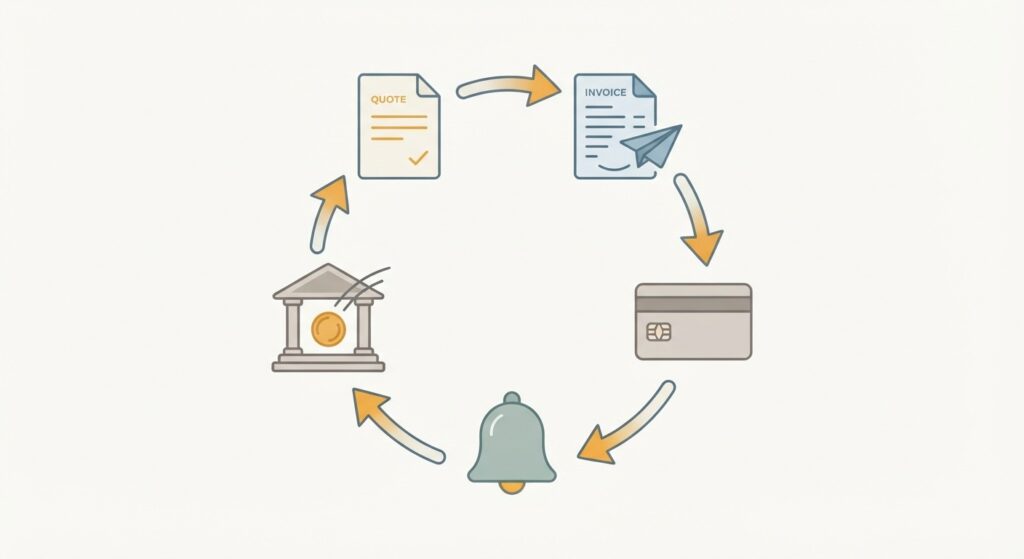
Zoho Books lets you create an estimate, convert it to an invoice, send it with an online payment link, automate reminders, and track payments through a client portal. A payment recorded against an invoice updates receivables and the ledger automatically, as Zoho’s features overview describes.
- Create an estimate.
- Convert the accepted estimate to an invoice.
- Send it with an online payment link.
- Let automated reminders chase overdue amounts.
- Record the payment and match it to the bank deposit.
From estimate to invoice: steps and templates
Conversion is one click, and line items, tax, and customer details carry over. Invoices support custom templates and fields (a PO number, say). Recurring invoices are available even on the Free plan, and payment gateways such as Stripe and PayPal let customers pay from the email. Gateway availability varies by country, so check yours.
A typical example: a consulting firm bills a retainer client monthly. One recurring invoice with a payment link and reminders switched on runs itself, and the only manual step left is reviewing the bank match. NerdWallet’s coverage points to this mix of automation and payment options as a strength. Our hidden Zoho features guide covers recurring transactions and receipt scanning in more depth.
Automated reminders and client portal visibility
Set a reminder schedule (before the due date, on it, and after), plus an automatic thank-you email on payment. The client portal gives customers one place to see invoices, payments, and statements, which cuts the “can you resend that invoice?” emails. For a view of billing tied to sales and project work, see our Zoho One case study for a digital marketing agency.
Multi-currency invoices and when they’re available
Multi-currency invoicing starts on Professional, with exchange-rate handling reflected in reports. Reviews on Capterra flag it as an area that can get complicated. Set your base currency correctly during setup, and test one foreign-currency invoice end to end, including the bank match, before rolling it out.
How are expenses, bills, and vendor collaboration handled in Zoho Books?
Zoho Books handles spending in two streams: expenses you pay immediately and bills you owe vendors and pay later. Both post to your ledger, carry receipts, and match against your bank feed.
- Record the expense or enter the bill.
- Attach the receipt.
- Assign the right account, and a customer or project if billable.
- Pay the bill and record the payment.
- Match the payment to the bank transaction.
Expenses and receipts: capturing spend as it happens
An expense is money that has already left the business. Record date, amount, vendor, tax, and account, and attach the receipt. Receipt autoscan can pre-fill the expense, but allowances differ by plan and region, so verify yours. Linking an expense to a customer or project keeps it visible in project profitability (Professional and above). In our setups, tagging at entry is far easier than untangling at month-end.
Bills and purchase orders: tracking what you owe
A bill is a vendor invoice not yet paid. It sits in payables until you record payment, which gives you a true picture of upcoming outflows. Purchase orders are available from Professional upward, alongside sales orders, with the usual flow of purchase order, bill, then payment.
Vendor portal and collaboration
The vendor portal, available from Premium, gives vendors their own login to view bills, payments, and statements. On lower tiers you still share documents by email and give your accountant access. Professional adds custom roles and built-in collaboration for approvals.
How does bank reconciliation actually work in Zoho Books?
You bring bank transactions in through a live feed or statement import, match each one to a record you already entered (or categorize it), then confirm your books agree with the statement for the period. Once they agree, you mark the period reconciled.
- Import transactions via feed or statement file.
- Match each line to an invoice payment, bill payment, or expense.
- Categorize anything unmatched, such as bank fees.
- Compare your book balance to the statement’s closing balance.
- Reconcile the period when the two agree.
Getting transactions into the Banking module
Live feeds need Standard or above. Otherwise import CSV, TSV, XLS, OFX, QIF, or CAMT.053 files. Imported lines wait as uncategorized until you match or categorize them, which prevents duplicates.
Matching and categorizing transactions
Matching links a bank deposit to a payment you already recorded without creating a second entry. Categorizing is for things you haven’t recorded, such as a direct debit. Most trouble comes from two habits: recording a payment manually and also categorizing the deposit as income (counting it twice), and working from a messy chart of accounts.
Reconciling a period and fixing differences
| Common cause of a gap | What to check |
|---|---|
| Missing transaction | A bank line never imported or categorized |
| Duplicate entry | Same payment recorded manually and from the feed |
| Wrong date or amount | A typo in a manual payment |
| Outstanding items | Payments not yet cleared by the bank |
Some Capterra reviewers mention slow support, so a written reconciliation routine your team can follow without waiting on anyone is a practical workaround. For years of unreconciled history, our Zoho Migration team handles mapping and cleanup.
What automation features make Zoho Books easier to run?
Zoho Books automates routine work through workflow rules, which run emails, field updates, webhooks, and custom functions when an event happens or a date arrives. Most pages mention “automation” in passing, so here are rules you can copy. Zoho’s workflow rules help documents the mechanics.
Triggers, criteria, and actions explained simply
- Trigger: event-based (created, edited, submitted, approved, rejected) or date-based.
- Criteria: the conditions that must be true. A rule can combine several criteria and conditions; Zoho sets the limits, so check the current numbers in its help page.
- Action: immediate or time-based, such as an email three days after the trigger.
Zoho also added “changes” and “changes from/to” trigger conditions in 2025-2026, so a rule can fire only when a field moves between specific values. For logic beyond the rule builder, our Customization & Automation team writes custom functions with Deluge scripting. If you use Zoho CRM too, our explainer on Zoho workflow rules and if-then logic shows the same thinking on the CRM side.
5 ready-to-use workflow examples for SMBs
| Scenario | Trigger | Criteria | Action | Best for |
|---|---|---|---|---|
| Thank-you after payment | Invoice paid | None | Email customer, optional discount | Retention |
| High-value invoice approval | Invoice created | Total above your limit (for example $2,500) | Route to manager | Finance control |
| Tag high-margin customers | Invoice created or edited | Margin above your threshold | Update customer field | Sales focus |
| Project budget alert | Timesheet or date-based | 80% of budget used | Email project manager | Agencies |
| Weekly overdue summary | Weekly | Invoices past due | Email sales lead | Collections |
Set the thresholds to your own margins and approval limits. Approval-style routing is also what helped in our equipment services case study.
Monitoring usage and handling failures
Zoho Books shows daily usage stats for workflow actions and lets you set failure preferences: daily usage limits, notifications when an action fails or nears its limit, and how failed actions are retried. If a rule suddenly stops firing, check the limits first. Assign one person to review failed runs weekly, because a silent failure in a payment reminder costs real cash flow.
What reports and month-end close steps should you follow in Zoho Books?
Zoho Books provides the standard statements (profit and loss, balance sheet, cash flow) plus sales, payables, receivables, and inventory reports. Month-end close is the routine of making sure the numbers behind them are complete and reconciled, so run reports only after the checklist below.
The reports most small businesses actually use
| Report | What it tells you | Review |
|---|---|---|
| Profit and loss | Income, expenses, net profit | Monthly |
| Balance sheet | Assets, liabilities, equity | Monthly |
| Cash flow | Where cash came from and went | Monthly |
| Receivables aging | Who owes you, and how late | Weekly |
| Payables aging | Who you owe, and when | Weekly |
| Sales by customer or item | What drives revenue | Monthly or quarterly |
Zoho added inventory turnover reports, by amount and by quantity, in its 2025-2026 updates. Inventory features sit on Professional and above, with advanced inventory on Elite, and advanced analytics on Ultimate. When built-in reports aren't enough, our Zoho Analytics & Reporting service builds dashboards on top of Zoho Books data.
A practical month-end close checklist
- Record all outstanding invoices, bills, and expenses.
- Reconcile every bank and card account.
- Review receivables and payables aging.
- Post adjusting journal entries if your accountant uses them.
- Check the chart of accounts for miscategorized balances.
- Review the three core reports for anything odd.
- Hand off to your accountant, then lock the period if your settings allow.
| Step | Owner | Output |
|---|---|---|
| Record outstanding transactions | Bookkeeper or owner | Complete transaction list |
| Reconcile bank and card accounts | Bookkeeper | Reconciled accounts |
| Review aging reports | Owner | Collection and payment actions |
| Adjusting entries | Accountant | Journals posted |
| Report review | Owner and accountant | Approved statements |
The first few closes take longest, and the cause is usually an unclean chart of accounts or unreconciled history rather than Zoho Books itself.
What are the main benefits and limitations of Zoho Books?
The main benefits are workflow automation, integration with the Zoho ecosystem, and good value. The main limitations are a narrower third-party integration list than some rivals, slow support for some users, and extra complexity in multi-currency and inventory on lower tiers, based on Capterra user reviews and editorial coverage from NerdWallet, Business.org, and G2.
Benefits most users and editors highlight
- Ease of use for people without an accounting background.
- Automation: workflow rules, recurring invoices, and reminders cut repetitive work.
- Zoho ecosystem integration: customer, stock, and financial data stay in sync with Zoho CRM, Inventory, and Analytics. This is the strongest argument over standalone tools, and our pros and cons of the Zoho ecosystem covers it in depth.
- Value for money, including a Free tier.
Zoho’s testimonials about time savings versus QuickBooks are anecdotal, since they come from selected customers rather than independent testing.
Common pain points and workarounds
| Pain point | What users report | Workaround |
|---|---|---|
| Multi-currency complexity | Confusing setup and exchange rates | Set base currency early; test one foreign invoice |
| Invoice customization | Harder to tailor than expected | Plan custom fields early; keep templates simple |
| Support response times | Slow replies for some | Document procedures; set an escalation path |
| Search and multi-entity friction | Limited search; clunky across entities | Use clear naming conventions |
| Analytics on lower tiers | Advanced analytics gated to Ultimate | Use built-in reports or Zoho Analytics |
These workarounds share the same habits: a clean chart of accounts, written procedures, and one named owner. In our client work, the teams who struggle are usually the ones who skipped setup discipline, not the ones who outgrew the product.
When to choose alternatives
| Dimension | Zoho Books | QuickBooks Online | Xero | Wave | NetSuite / Sage Intacct |
|---|---|---|---|---|---|
| Best for | Automation and the Zoho suite | Widest accountant and app support | Broad app support | Free, simple invoicing | Full ERP |
| Third-party apps | Moderate, strongest inside Zoho | Very broad | Broad | Limited | Extensive |
| Complexity | Moderate | Moderate | Moderate | Low | High |
- QuickBooks Online or Xero if your accountant already works in one, or you rely on many third-party apps, which TechRadar's alternatives coverage also reflects. Our Zoho Books vs QuickBooks comparison goes deeper.
- Wave for free, simple invoicing.
- NetSuite or Sage Intacct for enterprise ERP needs.
- Zoho Books for automation, value, and a connected suite, especially alongside Zoho CRM.
Many businesses run Zoho CRM with QuickBooks or Xero, and our Zoho Integration team connects them.
How much does Zoho Books cost and which plan should you pick?
Zoho Books has six plans: Free, Standard, Professional, Premium, Elite, and Ultimate. The Free plan targets very small businesses under a revenue cap, and higher tiers add users, volume, and features such as multi-currency, inventory, a vendor portal, and advanced analytics. Pick by the features your process needs rather than by price. For current rates in your region, see books.zoho.com, or contact us for pricing guidance. Our Zoho cost guide explains what Zoho costs beyond the sticker price.
Plan ladder and key limits
Each step up mainly raises user count, monthly invoice and expense volume, and receipt autoscan allowance. Limits differ by plan and region, so check Zoho's pricing page. Feature gates below reflect Zoho's published structure as of October 2026.
| Plan | Typical fit | Multi-currency | Inventory | Vendor portal | Advanced analytics |
|---|---|---|---|---|---|
| Free | Solo, very small | No | No | No | No |
| Standard | Small, needs bank feeds | No | No | No | No |
| Professional | Growing service and product firms | Yes | Stock tracking | No | No |
| Premium | Portals, budgeting, custom modules | Yes | Stock tracking | Yes | No |
| Elite | Inventory-heavy | Yes | Advanced | Yes | No |
| Ultimate | Larger operations | Yes | Advanced | Yes | Yes |
Feature gates that change how the system works
- Standard and above: live bank feeds.
- Professional and above: multi-currency, sales and purchase orders, project profitability, stock tracking, custom roles, collaboration tools.
- Premium and above: vendor portal, budgeting, custom modules.
- Elite: advanced inventory.
- Ultimate: advanced analytics.
A common mistake is starting on a lower tier, then finding that multi-currency or custom roles are locked a month in.
Simple plan chooser by business profile
| If you are... | Look at |
|---|---|
| A freelancer or solo operator | Free or Standard |
| A growing service business or agency | Professional |
| An e-commerce or inventory business | Professional, or Elite for advanced inventory |
| Multi-location, or needing advanced analytics | Elite or Ultimate |
Two questions settle most decisions: do you invoice in more than one currency, and do you hold physical stock? If either is yes, plan for Professional or above. Stock-heavy teams can see how this plays out in our veterinary clinic case study and our Zoho CRM for e-commerce page.
What a Zoho Books project with ZillTech costs
Your Zoho licence is paid to Zoho. Our consulting, implementation, and migration work is separate and scoped individually after a free initial consultation, because it depends on users, data volume, and integrations. There is no obligation to proceed. Schedule a free consultation and we will give you a fixed scope in writing.
What next steps should you take to implement Zoho Books?
Start with the 7-day setup checklist, run one invoice-to-cash and one expense-to-bill cycle, switch on two workflow rules, then do your first month-end close. That order takes you from a blank account to reconciled, reportable books in about a month.
| Week | Focus | Done looks like |
|---|---|---|
| 1 | Setup | Profile, tax, COA, bank, and users configured |
| 2 | First live transactions | Real invoices, bills, and expenses entered; first bank matches |
| 3 | Automation | Two or three workflow rules live, failure notifications on |
| 4 | First close | Accounts reconciled, aging reviewed, accountant sign-off |
Test before you trust, and name one owner. If you are migrating, add time up front for data mapping, which is the step that most often stretches a timeline.
Where to get help and extend Zoho Books
- Zoho’s help docs and community updates for features and what’s new.
- Integrations with Zoho CRM, Inventory, Analytics, payment gateways, and tools like Zapier, which our Zoho Integration team sets up.
- An accountant or partner: an accountant for COA, tax, and close review; a partner for workflows, migration, or multi-app builds.
Our Zoho Consulting team can map your processes to the right plan. We support clients through our Texas and Toronto teams and remotely elsewhere. Book a free Zoho consultation or browse our case studies.
Related guides you should read next
Frequently asked questions
How does Zoho Books work?
Zoho Books keeps invoicing, expenses, bank matching, and reporting in one cloud workspace sharing a single chart of accounts. You enter or import a transaction once, and it updates your ledger, bank reconciliation, and reports automatically.
How long does it take to set up Zoho Books?
A basic setup typically takes five to seven working days: organization settings, chart of accounts, bank connection, test transactions, and users. Migrating data from another system adds time.
Can I run Zoho Books without an accountant?
Yes, for day-to-day invoicing and expenses. We still recommend an accountant review your chart of accounts, tax settings, and first month-end close.
Is Zoho Books better than QuickBooks for a small business?
It depends. Zoho Books suits businesses that want automation, value, and a connected Zoho suite. QuickBooks Online often suits businesses whose accountant or third-party apps are built around it.
Does Zoho Books have a free plan?
Yes. The Free plan is aimed at very small businesses under a revenue cap and includes basics such as recurring invoices. Check books.zoho.com for the current cap and limits.
How much does Zoho Books cost?
Plans range from Free to Ultimate, with price rising as you add users, volume, and features. See books.zoho.com for current rates. ZillTech’s own consulting and implementation work is scoped individually after a free consultation.