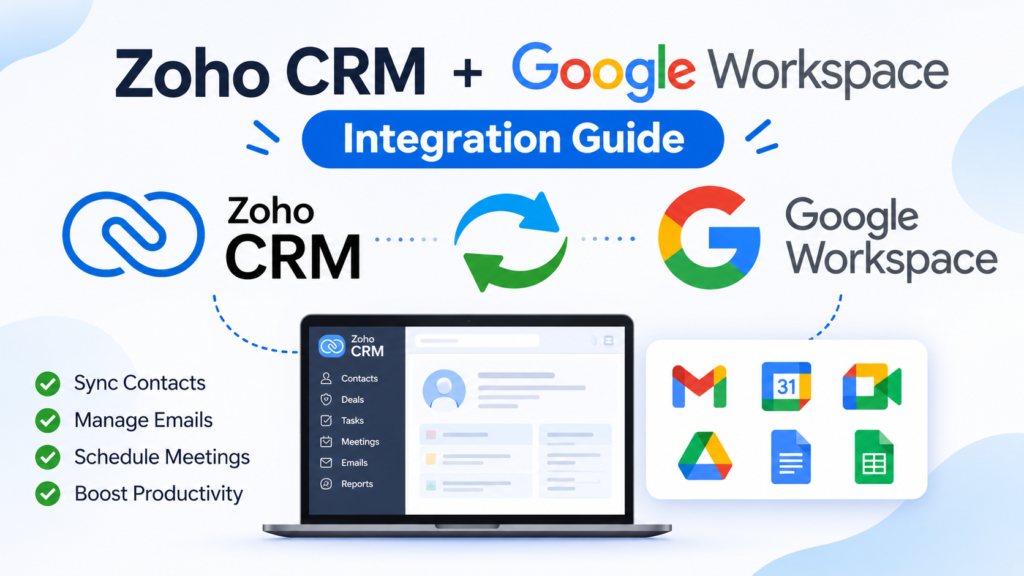
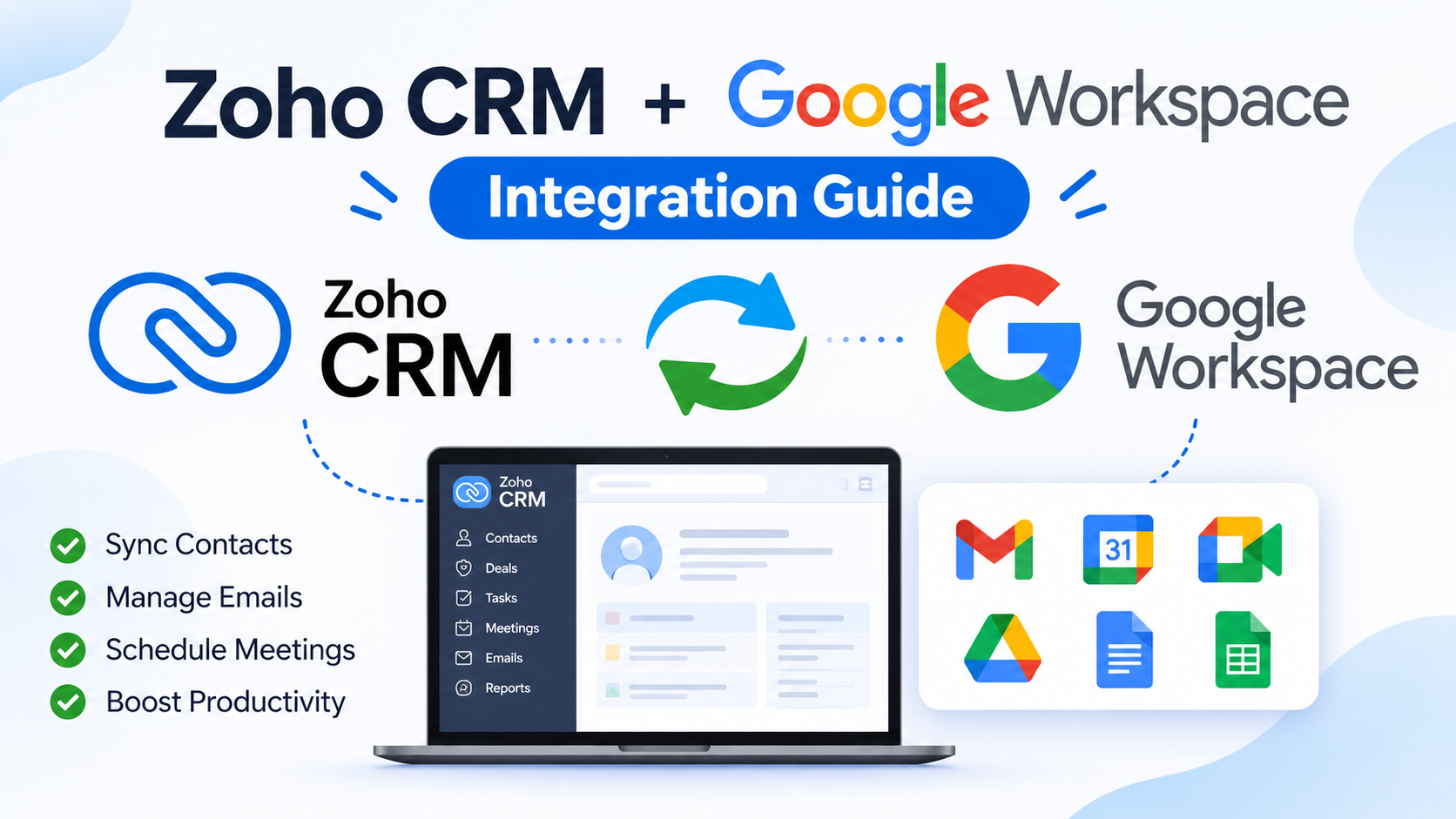
Most sales conversations start in an inbox, get scheduled on a calendar and end with a proposal sitting in a shared folder. If your CRM lives outside that flow, your team ends up copying and pasting between tabs, and the CRM slowly goes stale. A Gmail Zoho CRM integration closes the biggest gap first, and once Calendar and Drive are connected too, Zoho CRM becomes the one place where the whole customer story lives.
This guide explains what each connection does, the three ways to connect Gmail, how to sync Google Calendar, how to attach Drive files, the limits that catch people out, and how to fix the most common problems. Menu names change over time, and Zoho’s own help pages still use the older “G Suite” name in places, so treat the steps below as a map and confirm them in your own account. If you are still at the setup stage, our Zoho implementation guide for US businesses covers the bigger picture first.
Why connect Zoho CRM with Google Workspace?
Your sales team probably does not live inside the CRM. They live in Gmail, Calendar, Docs and Drive, and CRM data only gets updated when someone remembers to do it. Zoho’s Google Workspace integration overview makes the same point: reps use a handful of everyday apps, so the CRM has to meet them there.
When the connection is set up properly, you get a few clear benefits:
- Email history on the record. Anyone opening a lead or contact can see what was sent and received, instead of asking the rep who “owns” the inbox.
- Fewer missed meetings. Meetings booked in either calendar show up where the team expects them.
- One source for documents. Proposals, contracts and spreadsheets are attached to the deal rather than buried in an email thread.
- Cleaner data. Less manual entry means fewer typos and fewer duplicates. If you suspect your CRM already has this problem, our Zoho CRM audit checklist shows how to find what is slowing your team down.
What you can connect: a quick overview
Zoho CRM and Google Workspace connect in several separate pieces. They are set up in different places, so it helps to see them side by side before you start.
| Connection | What it does | Where you set it up |
|---|---|---|
| Gmail (email sync) | Send and receive emails from inside CRM and see them on records | Setup > Channels > Email |
| Zoho CRM for Gmail add-on | Add leads and contacts and view CRM data from the Gmail sidebar | Google Workspace Marketplace |
| Google Calendar sync | Keeps meetings and events aligned between both calendars | Setup > Marketplace > Google |
| Google Drive | Attach Drive files to records, or auto-create a Drive folder per record | Attachments related list, or the Drive extension |
| Google Contacts | Schedules contact sync between CRM and Google Contacts | Setup > Marketplace > Google |
You do not have to turn everything on at once. Most teams start with Gmail, add Calendar once email is stable, and bring Drive in last.
Before you start: a short preparation checklist
A few minutes of preparation prevents most of the problems we see later.
- Decide who administers what. You need a Zoho CRM admin and, for some steps, a Google Workspace admin. The Gmail add-on, for example, can be installed by an individual user, but a domain-wide install has to be done by your Google administrator.
- Check profile permissions in Zoho CRM. Features are tied to permissions. Zoho notes that users need the Zoho Mail Integration permission to use the Gmail API feature, and the Sync with Google Calendar permission for calendar sync.
- Check what Google allows. Google admins can restrict which third-party apps reach Gmail, Calendar and Drive data. Review those settings first (more on this in the security section below).
- Write down your rules. Which mailbox should sync, who can share emails with colleagues, and what happens to personal calendar events? Deciding this before you click Connect avoids awkward conversations afterward.
- Know your requirements. If you have not documented what your team needs from the CRM yet, our CRM requirements checklist is a good starting point.
Gmail Zoho CRM integration: three ways to connect
This is the part most people search for, and it is where the first real decision sits. There are three ways to bring Gmail into Zoho CRM, and they work differently.
Option 1: Gmail API (usually the best fit for Gmail users)
Zoho CRM’s Gmail API option lets you connect a Gmail inbox through Google’s API. Zoho describes it as the best choice for authorized access to Gmail data, mainly because of how emails are handled: with the API, emails are called directly from Gmail’s servers instead of being copied into Zoho’s database. Zoho adds one detail worth knowing. If MailMagnet is enabled, a few email details are stored, namely the mail ID, the sender address and the time received.
To set it up:
- In Zoho CRM, go to Setup > Channels > Email.
- Click Get Started to connect your inbox.
- Choose Gmail, then API.
- Sign in with Google and approve the access request.
Once connected, you can send and receive emails from CRM, see emails in context next to the contact’s details and share emails with other CRM users. Zoho also groups emails into three categories: Deals Closing This Month, Open Deals and Customers, which helps reps focus on the conversations that matter this week.
Option 2: POP or IMAP through the Zoho Mail add-on
The same email settings let you connect a mailbox through POP3 or IMAP instead of the API. The practical difference, according to Zoho, is storage: with POP3 or IMAP the emails are stored in Zoho CRM’s database. That can suit teams that want a stored copy inside the CRM, but it also means more customer email living in a second system, so decide that deliberately rather than by default.
Option 3: The Zoho CRM for Gmail add-on
The Zoho CRM for Gmail add-on works from inside Gmail rather than inside the CRM. You install it from the Google Workspace Marketplace, open an email, and use the sidebar to add the sender as a lead or contact, update fields from the email details, or jump to the record with a “View in CRM” button. Individuals can install it for themselves, while a company-wide install requires a Google Workspace administrator.
This option suits reps who spend their whole day in Gmail and just want to capture a new enquiry without switching tabs.
Which Gmail method should you choose?
| Method | Where reps work | Email storage | Best for |
|---|---|---|---|
| Gmail API | Inside Zoho CRM | Fetched from Gmail, not stored in Zoho (limited details with MailMagnet) | Teams that want email on CRM records with privacy in mind |
| POP/IMAP | Inside Zoho CRM | Stored in Zoho CRM’s database | Setups that need the mailbox protocol route |
| Gmail add-on | Inside Gmail | You choose what to save to CRM | Reps who live in the inbox |
These options are not mutually exclusive. A common setup is the Gmail API for email visibility on records, plus the add-on so reps can capture new leads from the inbox.
Keep your lead source clean
When email starts creating leads, the “where did this lead come from” question becomes important quickly. Decide up front what Lead Source value a lead captured from an email will get, and apply it consistently. Our guide on how to add Lead Source in Zoho CRM walks through the setup and reporting.
Syncing Google Calendar with Zoho CRM
Once email is working, calendar sync removes the double-booking and the “I never saw that meeting invite” problem. Zoho’s Google Calendar sync lets you keep both calendars in step.
How to set it up
- In Zoho CRM, go to Setup > Marketplace > Google.
- Open the Calendar tab and click Authenticate Google Calendar.
- Sign in to Google and allow the permissions in the new tab.
- Choose the calendar to sync, then pick a sync direction: two-way, one-way from Zoho CRM to Google Calendar, or one-way from Google Calendar to Zoho CRM.
- Optionally, switch on the setting that blocks time in the Zoho CRM calendar based on your Google Calendar meetings.
The calendar must be one where you have read and write permission, because only those calendars appear in the drop-down list.
Limits to know before you roll it out
Calendar sync works well, but the details below are worth telling your team about in advance:
- Recurring events are not synced. If your team relies on weekly recurring meetings, they will not carry over.
- The first sync is larger than later ones. Zoho syncs up to 5,000 entries from the past three months on the first run, and up to 500 entries on later syncs.
- Timing differs by direction. Events you add in Zoho CRM sync instantly, while events from Google Calendar sync every few minutes.
- Reminders do not sync. Set reminders on the platform where people will actually see them.
- Deleting the sync setup causes duplicates. If you remove the configuration and sync again, Zoho warns that duplicate records are created, in both systems when two-way sync is on.
- Untitled events appear with a placeholder subject. Events with no title in Google Calendar arrive in CRM with the subject “Not Provided”.
A simple habit helps: ask reps to give every meeting a clear title that includes the company name. It keeps the CRM calendar useful and makes reporting easier later.
Connecting Google Drive to Zoho CRM
Documents are where deals tend to get messy: three versions of a proposal, one in an email and one on someone’s desktop. Drive integration brings them back to the record. There are two main approaches.
Attach Drive files to a record
In the Attachments related list on a record, you can attach files from other cloud drives. Zoho lists Google Drive, Box and OneDrive as supported options. The first time, you authenticate your Google account, and after that you pick the documents, spreadsheets or presentations you want to attach. Zoho sets limits on file size and how many files you can attach at once, and its pages show different figures, so check the current help page before you promise anything to your team.
Use the Google Drive extension for folders per record
The Google Drive extension goes a step further. Zoho describes it as a way to sync, share, access and manage files associated with records through Google Drive from within the CRM. In the older help documentation, creating a lead or contact automatically creates a folder for that record in Drive, and files uploaded there are listed in the record’s Google Drive list. It works with modules such as Leads, Accounts, Contacts, Cases and Deals.
If you work with many documents per customer, the extension gives you a tidier structure. If you just need to attach the odd file, the attachment route is simpler.
Automate more once the basics work
A connected Gmail, Calendar and Drive is a strong base, but the bigger time savings come from automation built on top of it.
- Route and track leads automatically. Zoho Flow can create leads, notify the team and update records without any code. Our guide on lead management with Zoho Flow shows how.
- Bring in leads from other channels. If you also run paid social, see how to send leads from the Facebook Lead Ads to Zoho CRM integration, so every channel feeds the same pipeline your Gmail conversations live in.
- Add custom logic. Follow-up tasks after a meeting, folder naming rules, or alerts when a deal goes quiet often need scripting. That is where Zoho customization and automation comes in.
- Use AI carefully. Summaries of email threads and suggested follow-ups can help, but they should write back to the CRM in a controlled way. Our roundup of the best AI tools for Zoho CRM integration explains how to choose and pilot them.
Common problems and how to fix them
| Problem | Likely cause | What to try |
|---|---|---|
| Emails do not appear on CRM records | Missing profile permission, or the mailbox was not connected through Setup > Channels > Email | Check the Zoho Mail Integration permission and reconnect the mailbox |
| Connection suddenly stops working | A Google admin changed app access, and untrusted apps lost access | Ask your admin to review the app’s status in the Admin console |
| Duplicate calendar events | Sync configuration was deleted and recreated | Remove the duplicates, then keep one sync setup |
| Recurring meetings missing | Recurring events are not supported by the sync | Create important recurring meetings in both calendars, or use a different process |
| Reminders not firing | Reminders do not sync between the two platforms | Set the reminder where the person actually checks |
| Google events appear late in CRM | Events from Google sync every few minutes | Wait a few minutes, or create time-sensitive events in CRM |
| Meetings show “Not Provided” | The Google event had no title | Add a clear title in Google Calendar |
Duplicates deserve special mention. Once duplicate contacts or events pile up, they are hard to unpick manually. We saw this pattern in our Zoho CRM cleanup case study, where fixing duplicate data, broken workflows and failed integrations gave a sales team a system they could trust again.
Security and access: what your admin should review
Connecting Gmail, Calendar and Drive means you are giving another application access to sensitive business data, so the Google side deserves attention as much as the Zoho side.
Google’s Admin console app access controls let administrators decide how third-party apps reach Workspace data. Apps can be marked Trusted, Limited, Specific Google data or Blocked. Google also notes that if you switch a service such as Gmail or Drive to Restricted, previously installed apps that you have not trusted stop working and their tokens are revoked. That is the most common reason an integration works for weeks and then suddenly fails.
A sensible approach looks like this:
- Review the accessed apps list and confirm Zoho is configured the way you intend. Google notes that this list can take up to 48 hours to update after a token is granted or revoked.
- Apply the principle of least access. Only turn on the connections your team actually uses.
- Choose the Gmail method deliberately. Whether emails are stored in Zoho or fetched from Gmail is a privacy decision, not just a technical one.
- Document the setup. Record who authorized each connection, so a staff change does not break email sync for the whole team.
A simple rollout plan
Teams that try to switch everything on at once tend to run into confusion. A phased rollout works better:
- Week 1: Gmail. Connect a small pilot group, confirm emails show on records and agree the lead source rule.
- Week 2: Calendar. Turn on sync for the same group, share the limits above and check for duplicates.
- Week 3: Drive. Choose between attachments and the Drive extension and agree a folder naming habit.
- Week 4: Everyone. Roll out to the rest of the team, with a one-page guide covering where to click and who to ask.
Frequently asked questions
How do I connect Gmail to Zoho CRM?
Go to Setup > Channels > Email in Zoho CRM, click Get Started, choose Gmail and then API, and approve the Google access request. The user also needs the Zoho Mail Integration permission in their profile.
Does the Gmail API method store my emails in Zoho CRM?
According to Zoho, the Gmail API does not store emails in Zoho CRM’s database. Emails are called from Gmail’s servers. If MailMagnet is on, some details such as the mail ID, sender address and received time are stored.
Can I sync recurring Google Calendar events with Zoho CRM?
No. Zoho states that synchronization of recurring events is not supported, so plan for that if your team depends on repeating meetings.
What happens if I delete the calendar sync and set it up again?
Duplicate records are created. With two-way sync, the duplicates appear in both Zoho CRM and Google Calendar, so avoid removing the configuration unless you must.
Can an admin install the Gmail add-on for the whole company?
Yes. Any user can install the Zoho CRM for Gmail add-on for themselves, but a domain installation can only be done by the Google Workspace administrator.
Final thoughts
A good Gmail Zoho CRM integration is less about clicking Connect and more about making a few decisions early: which Gmail method to use, how calendar limits affect your team, how documents should be organized and who controls access on the Google side. Get those right and your reps spend less time copying information between tools, and your managers can finally trust what the CRM shows.
If you would rather not work through the permissions, sync rules and edge cases alone, our team can plan and build it with you. Talk to us about our Zoho integration services and we will set up Gmail, Calendar and Drive around the way your business actually works.